How to Remove Red and Green Wavy Underlines in Word

How to Remove Red and Green Wavy Underlines in Word 1

How to Remove Red and Green Wavy Underlines in Word? During your use of Microsoft Word, you may have encountered instances where red spell-check underlines appear frequently. While this is a useful feature in word processing software, it can sometimes be bothersome. If you want to disable this feature, follow the instructions in this article, as we will guide you on how to do it quickly!

Detailed Steps to Remove Red Underlines in Word

Red underlines typically appear under characters in Word documents as a result of the spell-check feature. With the software’s default language set to English, when you use Vietnamese, these words are often considered spelling errors and marked with red underlines.

However, this can be annoying for users. Therefore, we will provide instructions on how to turn off the spell-check feature and remove red underlines in Word. Below are the details for each version of the software. Feel free to refer to other methods if needed!

Word 2013, 2016, 2019, 365

Step 1: Open Word and select File in the top-right corner of the screen.
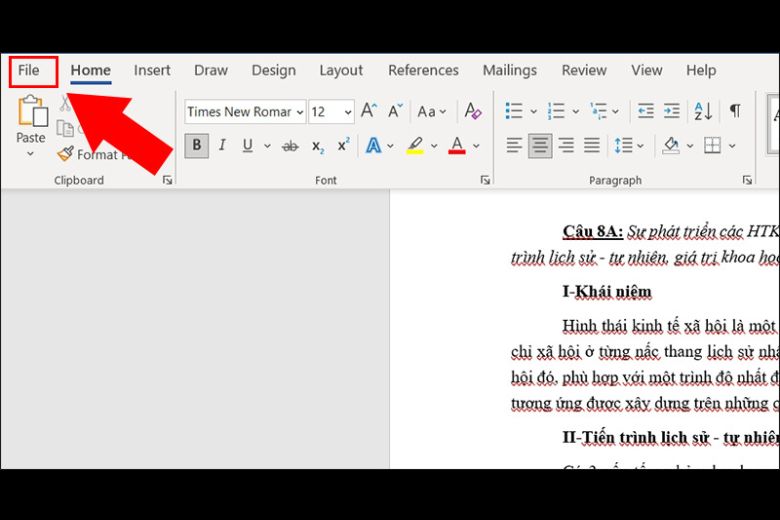
How to remove red dashes in Word 2013, 2016, 2019, 365 steps 1

Step 2: Scroll down and choose Options.
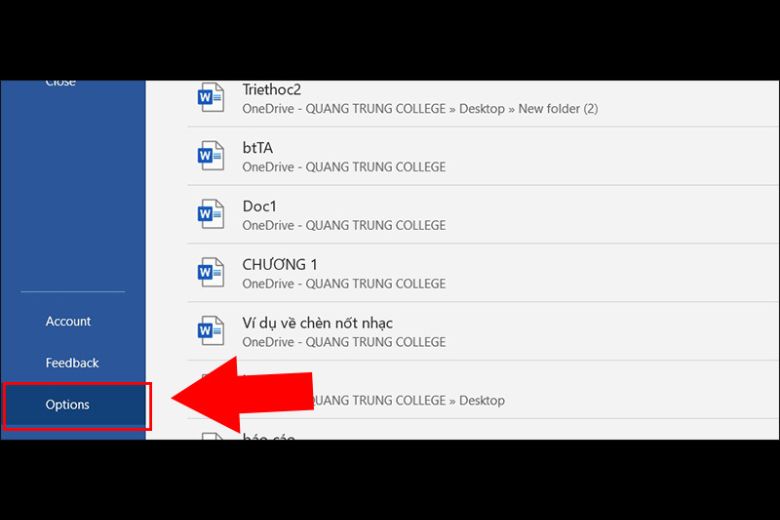
How to remove red dashes in Word 2013, 2016, 2019, 365 steps 2

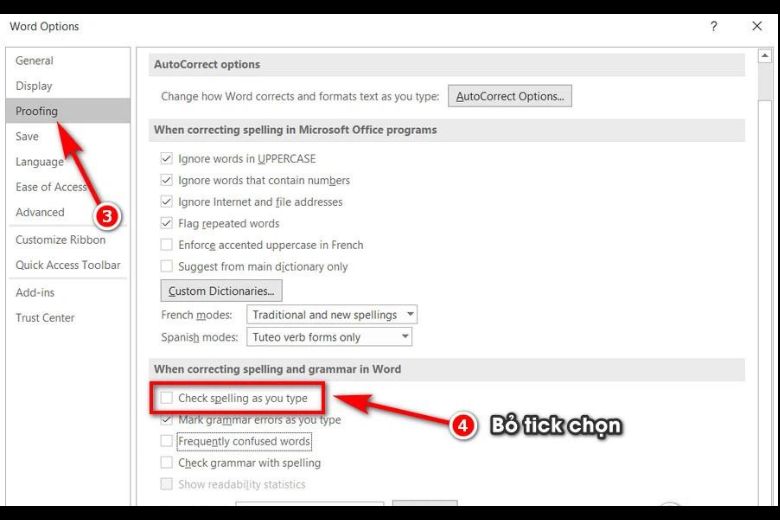
Step 3: Then, select Proofing within the Options dialog. Under When correcting spelling and grammar in Word, uncheck the following:

  • Check spelling as you type
  • Mark grammar errors as you type
  • Check grammar with spelling
  • Frequently confused words
How to remove red dashes in Word 2013, 2016, 2019, 365 steps 3

Alternatively, you can deselect the following two options:

  • Hide spelling errors in this document only
  • Hide grammar errors in this document only
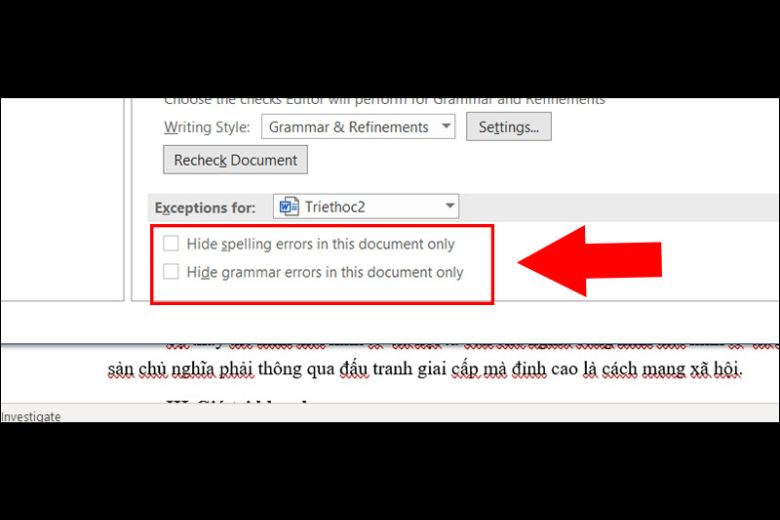
How to remove red dashes in Word 2013, 2016, 2019, 365 steps 3

Step 4: After unchecking the options, click OK to complete the process.
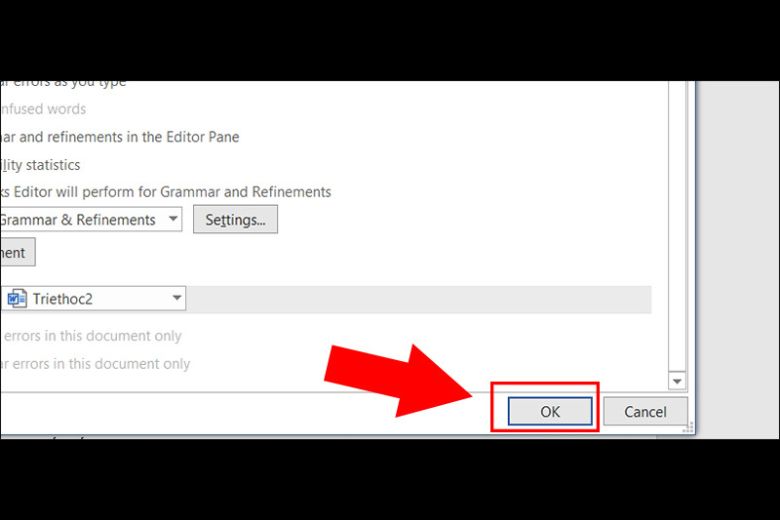
How to remove red dashes in Word 2013, 2016, 2019, 365 steps 4

Below is the result after you operate OK:
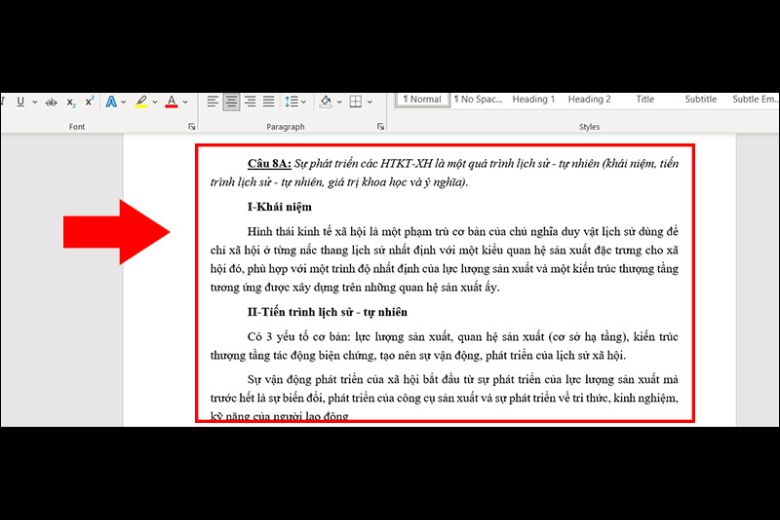
Below is the result after you operate OK

Word 2007, 2010

We will guide you on how to turn off the spell-check feature and remove red underlines in Word 2007 and 2010 below. This method also applies similarly to Word 2013, 2016, 2019, and 365, with slight differences in the user interface.

Step 1:

Open Word and click on File > then select Options.
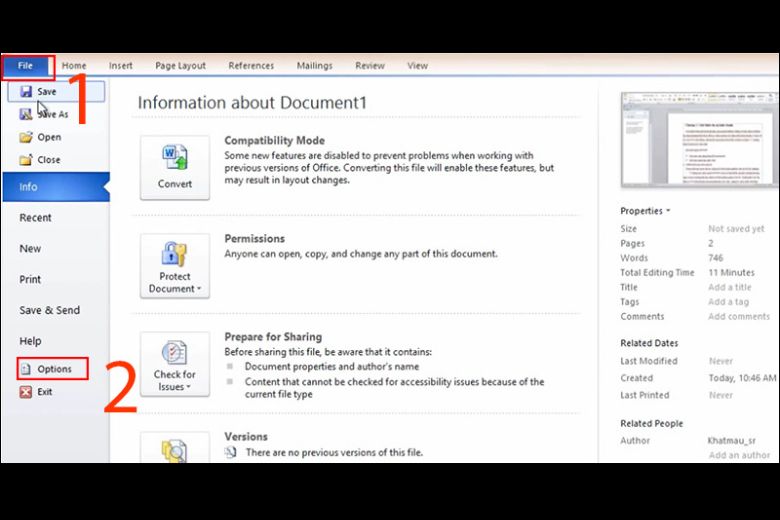
How to remove red dashes in Word 2007, 2010 step 1

Step 2:

Choose Proofing > and uncheck the features under When correcting spelling and grammar in Word.
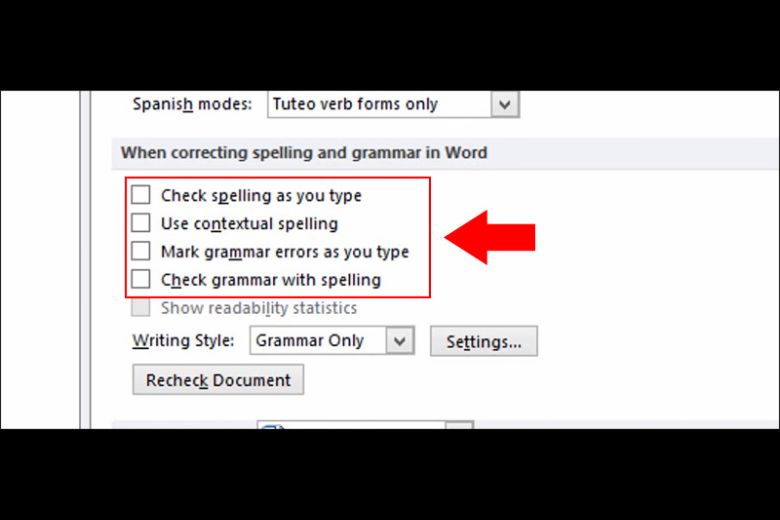
How to remove red dashes in Word 2007, 2010 step 2

Step 3:

Finally, click OK to complete the process.
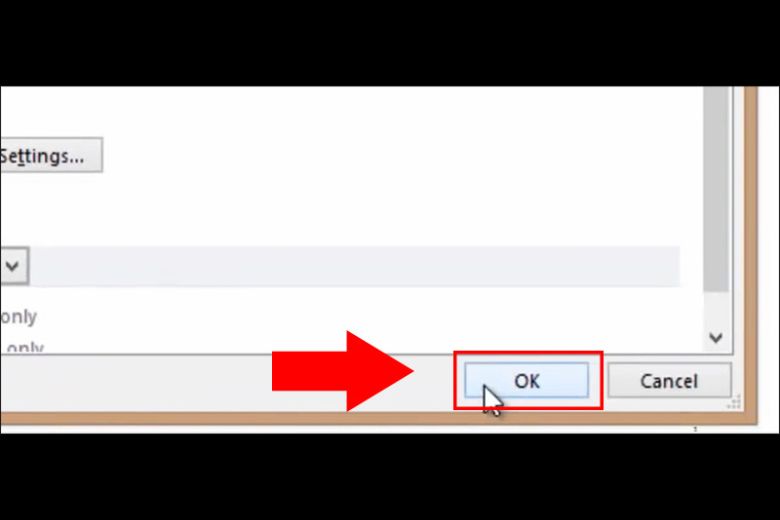
How to remove red dashes in Word 2007, 2010 step 3

Word 2003

Step 1:

First, open Word 2003 and select Tools > then choose Options.
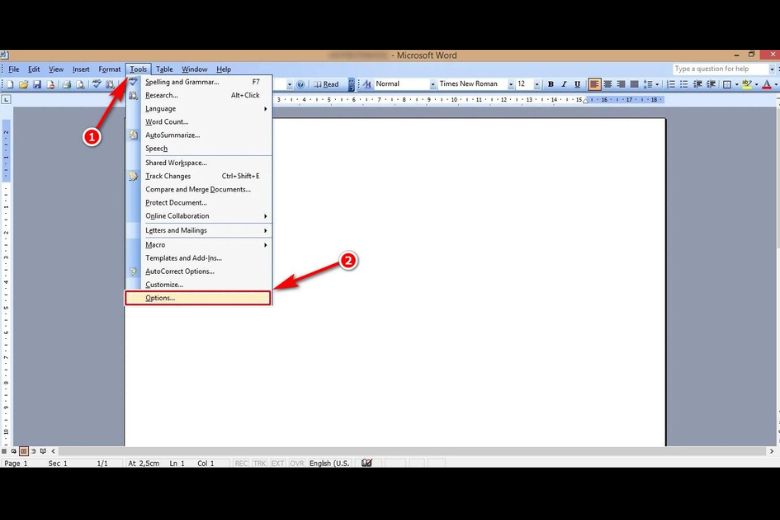
How to remove red dashes in Word 2003 step 1

Step 2:

Next, choose the Spelling & Grammar tab and uncheck the following options:

  • Check spelling as you type
  • Check grammar as you type

Tick the Hide spelling errors in this document option.
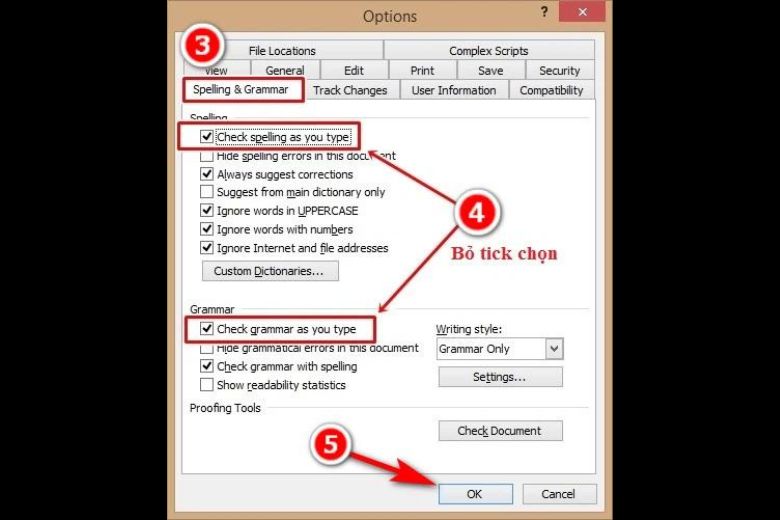
How to remove red dashes in Word 2003 step 2

Step 3:

Finally, click OK to complete the steps.
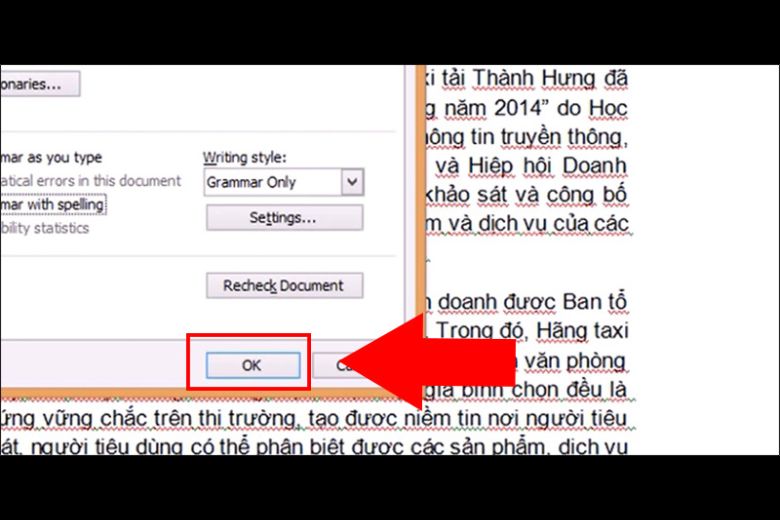
How to remove red dashes in Word 2003 step 3

Enabling Red Underlines in Word When Needed

If the previous instructions were about how to disable the spell-check feature and remove red underlines in Word, the following steps explain how to re-enable this feature when needed. All the steps can be performed right here.

Step 1:

Open Microsoft Word, select File on the toolbar, and then choose Options.
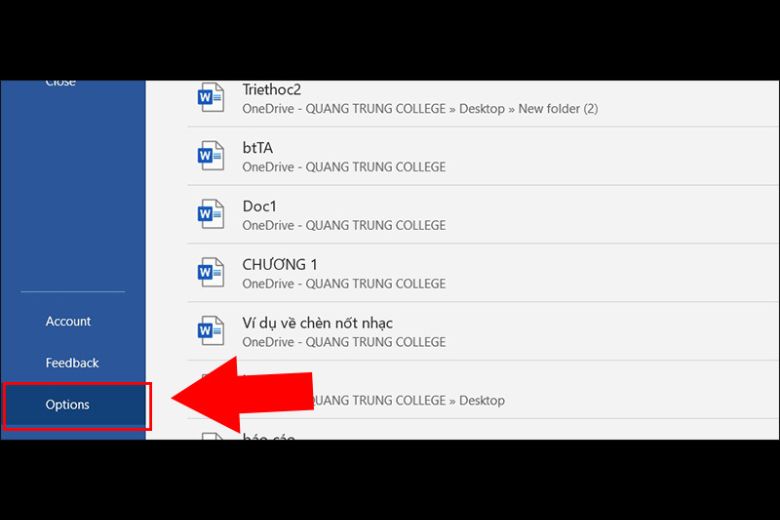
Steps to enable red dashes in Word when needed: step 1

Step 2:

Under Proofing in the When correcting spelling and grammar in Word section, simply click OK to finish!
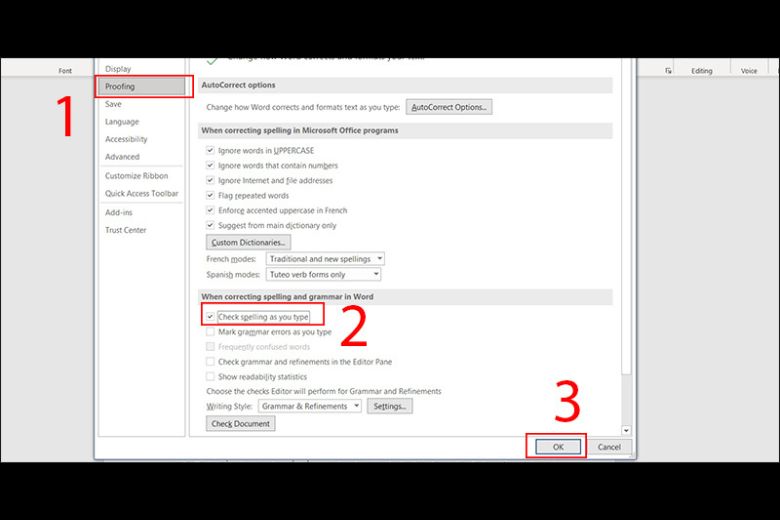
Steps to enable red dashes in Word when needed: step 2

Conclusion

How to Remove Red and Green Wavy Underlines in Word? We have compiled instructions on how to disable the spell-check feature and remove red underlines in Word for all versions in this article. We hope you can make the most of this useful feature in Word.

Related Posts

Cách cài đặt font chữ mặc định cho Word đơn giản, dễ thực hiện nhất 2

Cách cài đặt font chữ mặc định cho Word đơn giản, dễ thực hiện nhất

Trong quá trình soạn thảo văn bản, việc sử dụng một font chữ nhất quán và phù hợp không chỉ tạo nên tính chuyên nghiệp cho tài…

Giải Pháp Hiệu Quả Khi File Word Không Cho Chỉnh Sửa 6

Giải Pháp Hiệu Quả Khi File Word Không Cho Chỉnh Sửa

Trong quá trình sử dụng Microsoft Word, không ít người dùng gặp phải tình trạng file Word không cho chỉnh sửa, gây ra nhiều phiền toái và…

Khắc Phục Lỗi Ko In Được File Word: Nguyên Nhân và Giải Pháp Hiệu Quả 10

Khắc Phục Lỗi Ko In Được File Word: Nguyên Nhân và Giải Pháp Hiệu Quả

Việc in tài liệu là một phần không thể thiếu đối với dân văn phòng, sinh viên, và học sinh trong quá trình làm việc và học…

Hướng Dẫn Soạn Thảo Nội Quy Phòng Cháy Chữa Cháy File Word Đầy Đủ 14

Hướng Dẫn Soạn Thảo Nội Quy Phòng Cháy Chữa Cháy File Word Đầy Đủ

Phòng cháy chữa cháy (PCCC) là một trong những hoạt động quan trọng, có vai trò thiết yếu trong việc bảo vệ an toàn cho con người…

So Sánh 2 Bản Word Sự Khác Biệt Giữa Word 2016 và Word 2019 18

So Sánh 2 Bản Word Sự Khác Biệt Giữa Word 2016 và Word 2019

Phần mềm xử lý văn bản đóng vai trò quan trọng không chỉ trong công việc mà còn trong học tập. Trong số các phần mềm này,…

Những Cách Tách File Word Thành Nhiều File 23

Những Cách Tách File Word Thành Nhiều File

Microsoft Word là một phần mềm xử lý văn bản được phát triển bởi Microsoft, lần đầu tiên ra mắt vào năm 1983 dưới tên Multi-Tool Word…

Leave a Reply

Your email address will not be published. Required fields are marked *