How to move table in word, you may have encountered the issue of page breaks occurring within your tables even when there’s plenty of space left on the current page. This article below will guide you on how to quickly and effectively fix the problem of tables in Word automatically jumping to a new page. Let’s get started!
This article is conducted on a Windows laptop running Word 2016; additionally, you can perform these steps on Word 2003, 2007, 2010, 2013, and 2019, as well as on MacOS with similar procedures.
How to move table in word? Causes of automatic page jumping error in Word
The issue of automatic page breaks occurring when you insert tables, images, or diagrams in Word, causing your data to jump to a new page even when there’s sufficient space on the previous Word page, is indeed frustrating and can affect the professionalism of your document.
Causes of page jumping in Word:
- Due to the Word software that you use.
- Because you copy the table from somewhere else and paste it into the text.
- A common mistake when you use tables in Word word processing.
How to fix automatic page jumping in Word
This method can be applied to all versions of Word today and even on MacOS.
Quick Start Guide
Open a Word file that has jumped > Select the Home tab > Go to the Paragraph section > Select the Downward arrow > Select the Line and Page Breaks tab in the window that pops up > Uncheck all 4 cells in the Pagination section > Click OK to fix page jumping errors in Word.
Detailed instructions
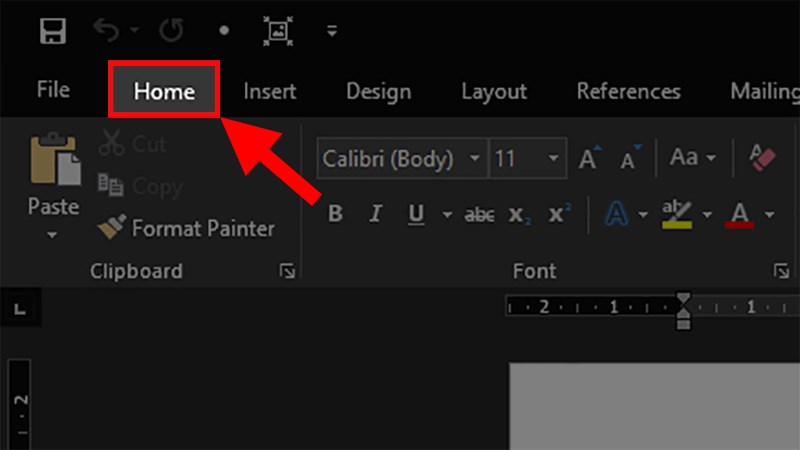
Step 1: Open the jumped Word file > Select the Home tab.
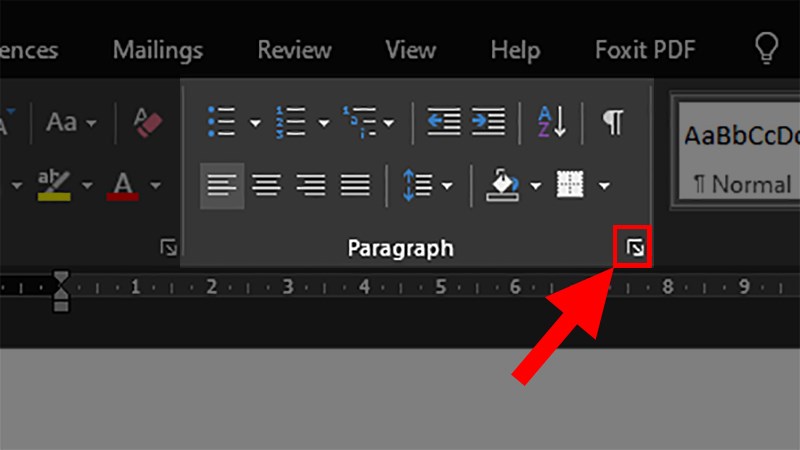
Step 2: Go to the Paragraph section > Select Down arrow.
Step 3: Select the Line and Page Breaks tab in the pop-up window.
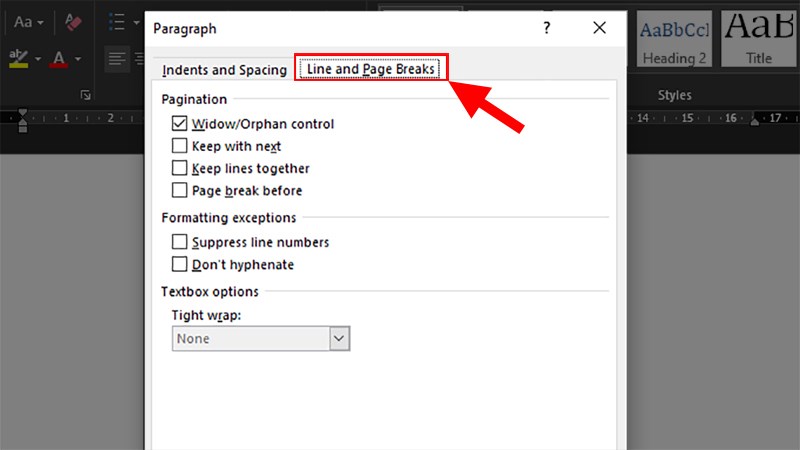
Step 4: Uncheck all 4 cells in the Pagination section > Click OK to fix page jumping errors in Word.
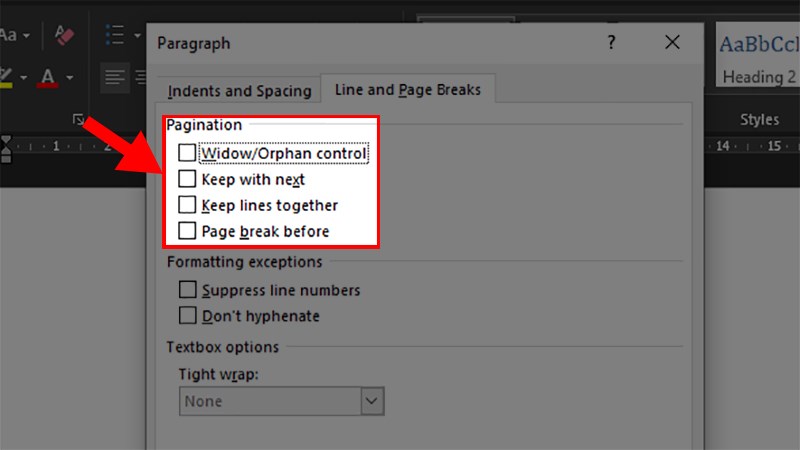
After done, if you still do not see all the page jumping, you just need to copy all the data in that Word file through 1 new Word file!
How to fix the error when inserting a table (table) in Word is automatically page jumping
This method is applicable to all current versions of Word and also on the MacOS operating system.
Quick Start Guide
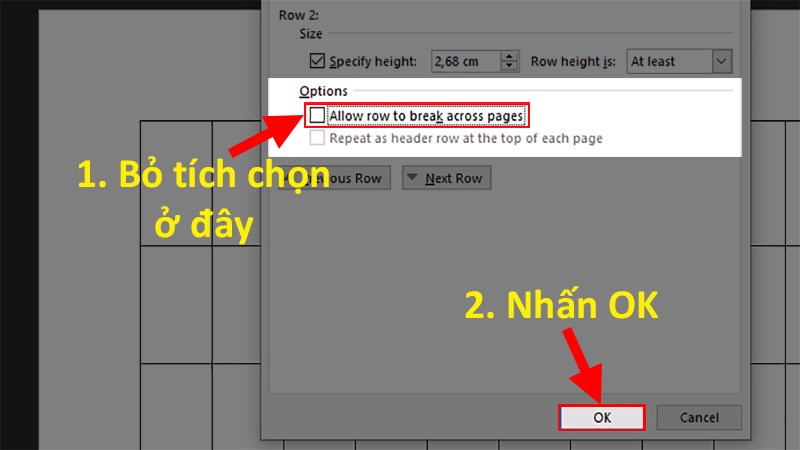
Open the Word file whose table has jumped > Right-click the > Select Table Properties > Select the Row tab in the window that pops up > Uncheck the box Allow row to break across pages > Click OK to fix the error that the table in Word is automatically page jumping.
Detailed instructions
Step 1: Open the Word file whose table has jumped > Right-click the > Select Table Properties.
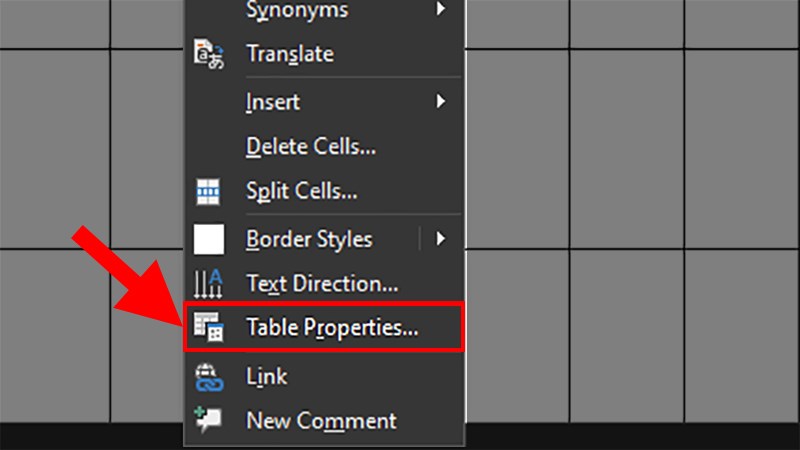
Step 2: Select the Row tab in the window that appears.
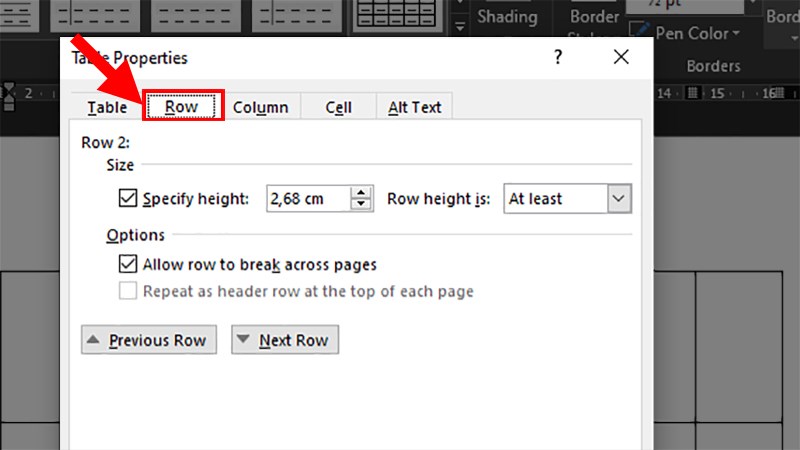
Step 3: Uncheck the box Allow row to break across pages > Click OK to fix table in Word is automatically page jumping.
Note: If after doing the steps above, you still can’t fix the error, you can create a new table and copy the data from the old table and paste it into.