How to open word lock? You’ve downloaded a Word document for research or study purposes, but it’s locked, preventing you from making edits, copying, or formatting any objects. This article will guide you through simple steps to unlock and edit a locked Word file!
This article provides instructions for a DELL laptop running Windows 10 and using Word 2016. You can certainly perform similar operations on other Windows computers with different Word versions like 2007, 2010, 2013, and 2019,…
How to open word lock? Benefit
- Quickly open locked files without you having to enter a password.
- Copy, edit documents that you do not know the password, files locked by the owner.
How to open word lock? Unlock with Notepad
Quick Start Guide
- Open a Word file that has been locked for editing > Click File > Select Save As > Choose where to save and save the file in .xml > format Click Save.
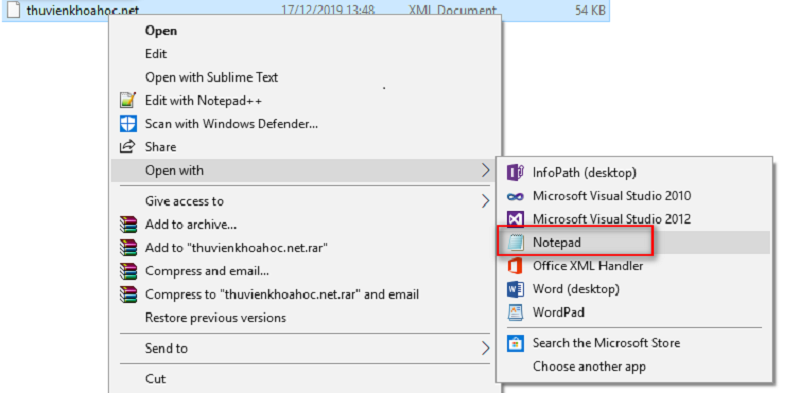
- Open the folder where the file is saved, right-click the file > Select Open with > Select
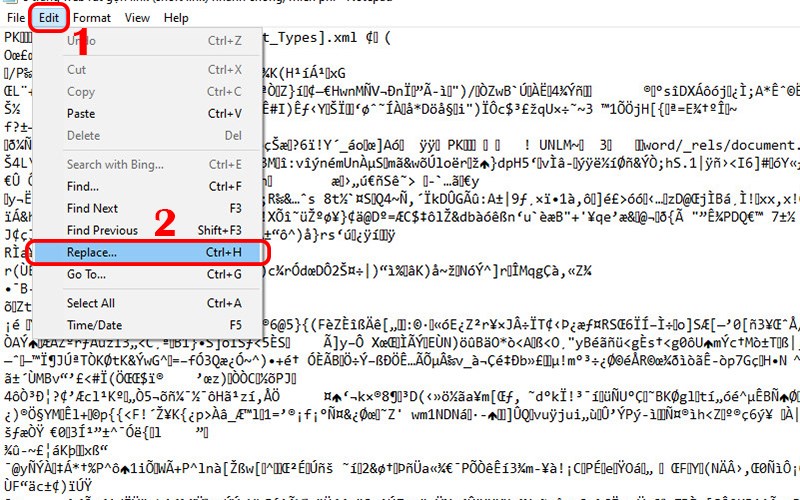
- After opening the .xml file with Notepad, select Edit > Select Replace > at Find what enter string w:enforcement=”1″ > at Replace with enter string w:enforcement=“0” > Save changes.
- Reopen the .xml file with Word, select File > Select Save As > Save the document in .doc or .docx Reopen the saved Word file, so you can edit the document as usual.
Detailed instructions
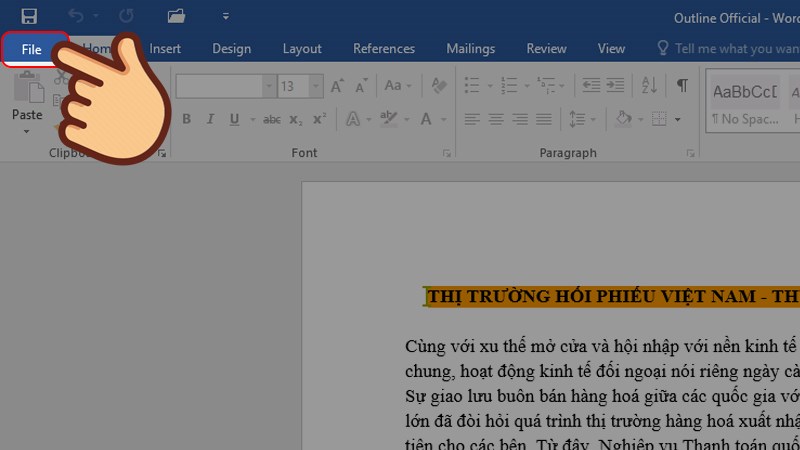
Step 1: Open the edited locked Word document, click File.
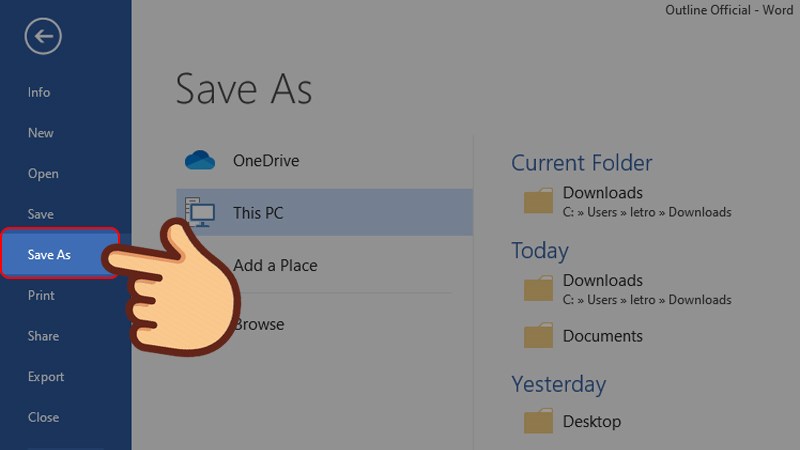
Step 2: Then, select Save As.
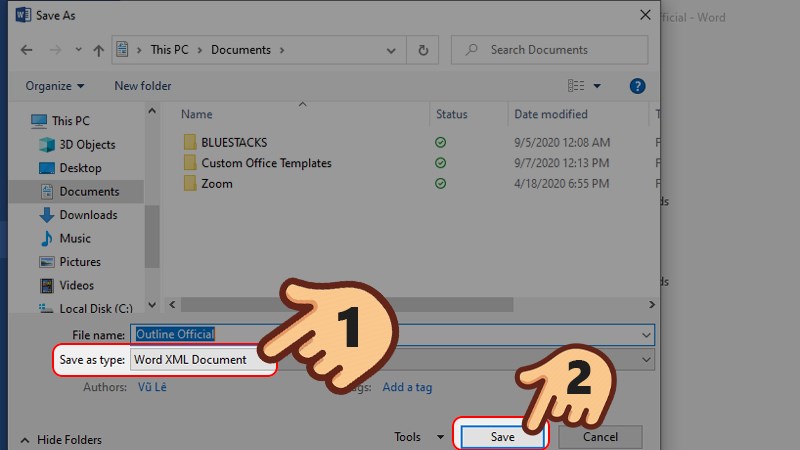
Step 3: Choose where to save the document. In the Save as type pane, select Save as Word XML Document (.xml) > Select Save.
Step 4: Open the folder where you just saved the file and right-click on the document.
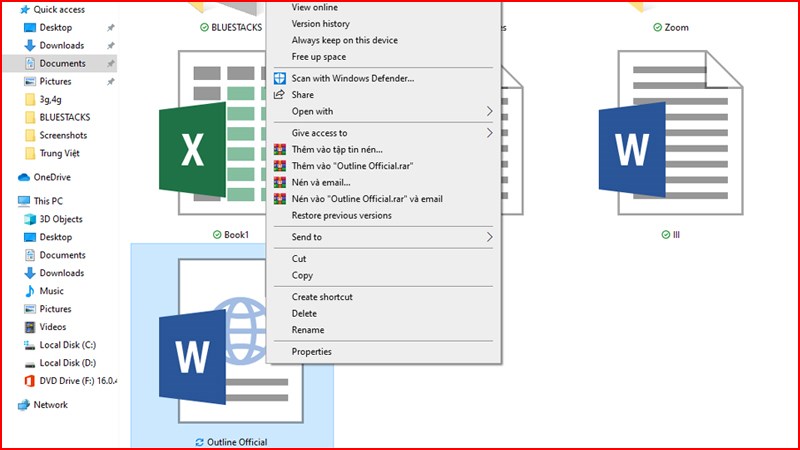
Step 5: Click Open with > Select Open with Notepad.
Step 6: After the document is opened with Notepad, press Ctrl + H or select Edit > Replace…
Step 7: In the Find what section, enter the string w:enforcement=”1″. In the Replace with field, enter the string w:enforcement=”0″. Then click Replace all to replace them all.
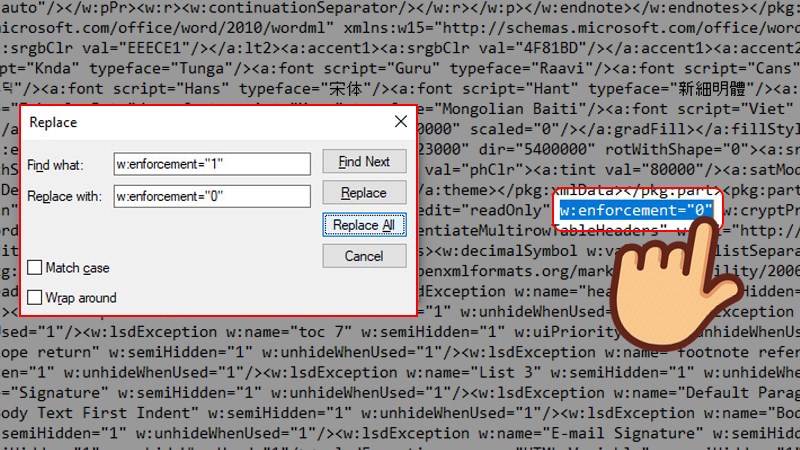
Note: If you cannot find the above string, in the Find what section enter the string w:enforcement=”on” and in the Replace with field enter the string w:enforcement=”off”. Then click Replace all to replace them all.
Step 8: Then, select File > Click Save to save the change.
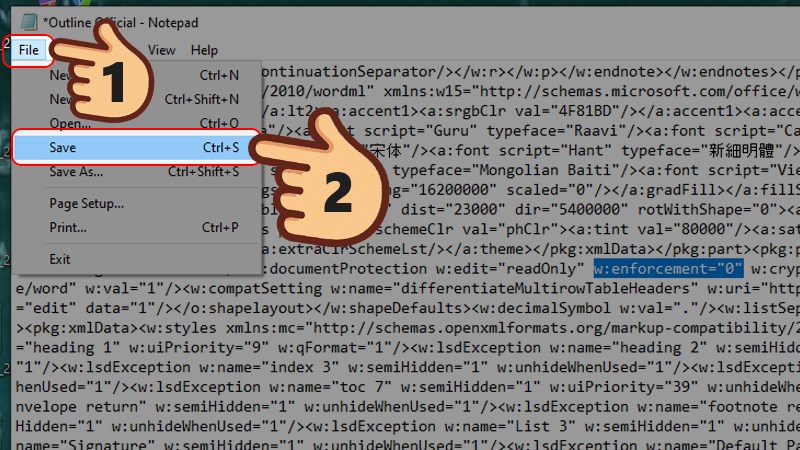
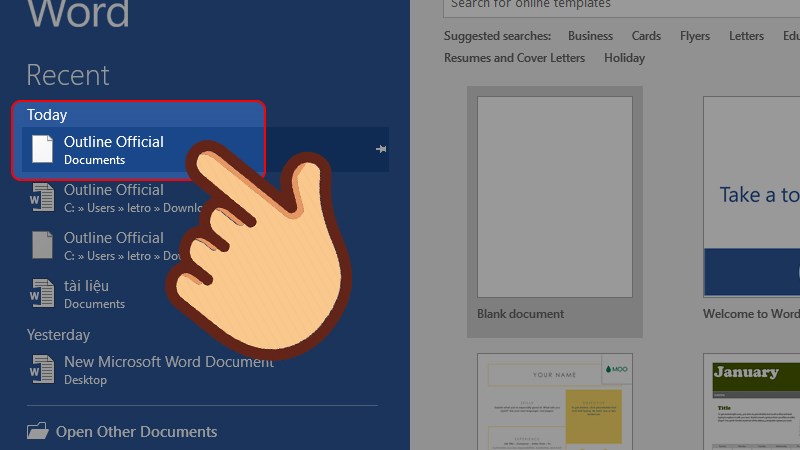
Step 9: Access Word software, reopen the .xml file.
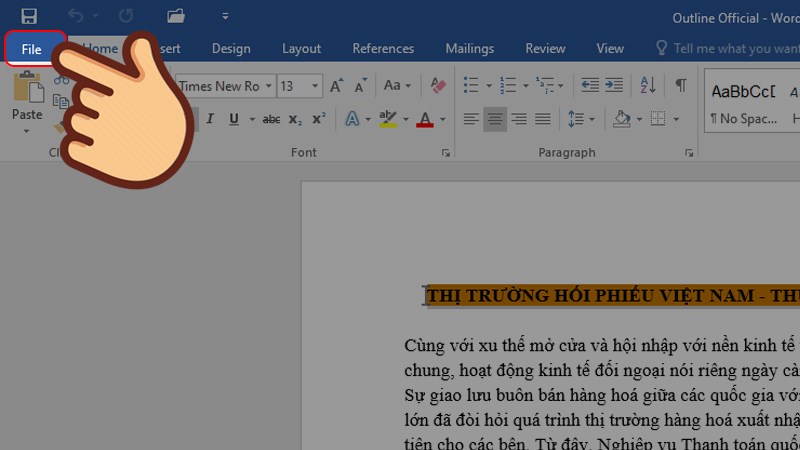
Step 10 : Then, click File.
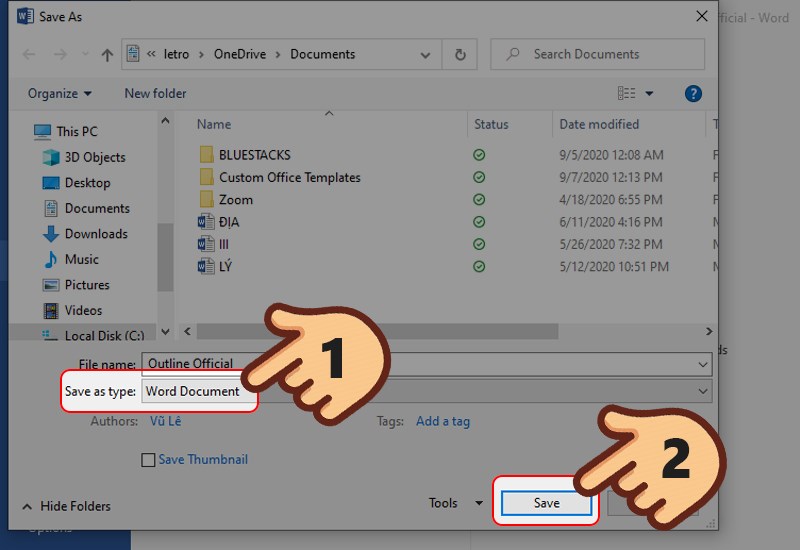
Step 11: Finally, select Save As and save the document as .doc or .docx format. Reopen the saved Word file, so you can edit the document as usual.
How to open word lock? Unlock with Wordpad
Demonstration video
Quick Start Guide
- Open a Word file that has been locked from editing > Click File > Select Save As > Choose where to save and save the file in .mht format > Click Save .
- Open the folder where the file is saved, right-click the file > Select Open with > Select Wordpad .
- After opening the .mht file with Notepad, select Find > At Find what type “pass” > Delete the line containing “pass” > Save changes.
- Open the .mht file again with Word, select File > Select Info > Select Protect Document > Finally, select Restrict Editing > Click Stop Protection > Save the document in .doc or .docx format . Reopen the saved Word file, so you can edit the document as usual.
Detailed instructions
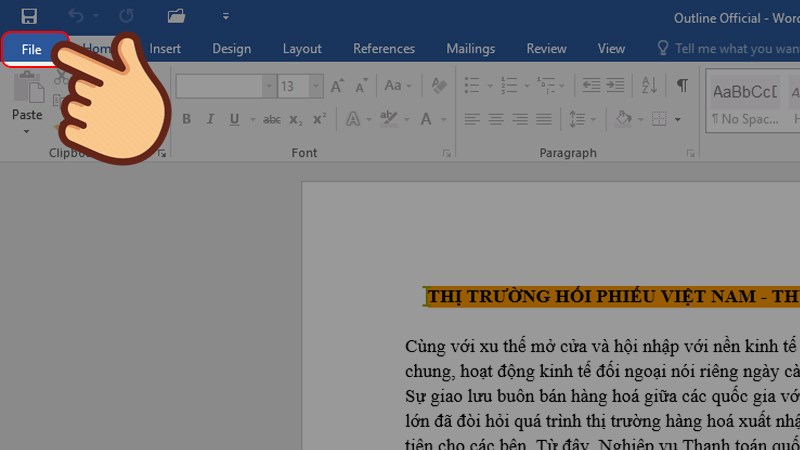
Step 1: Open the edited locked Word document, click File.
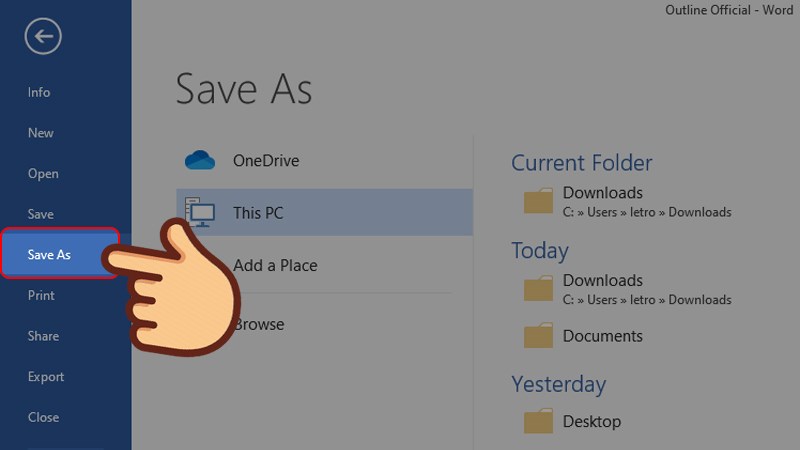
Step 2: Then, select Save As.
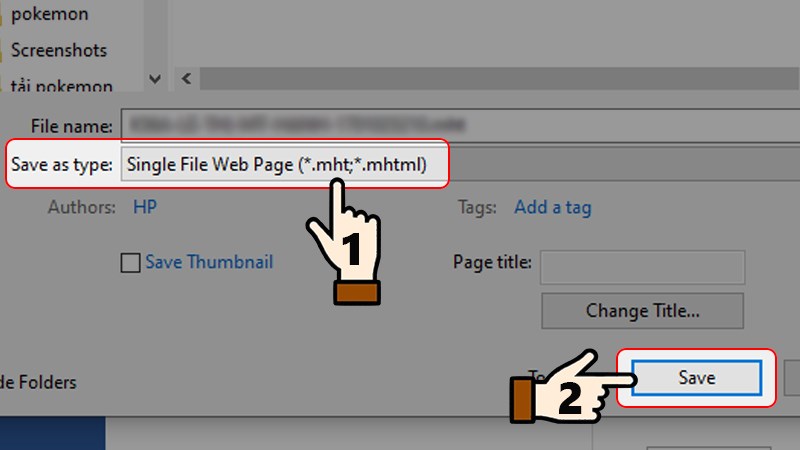
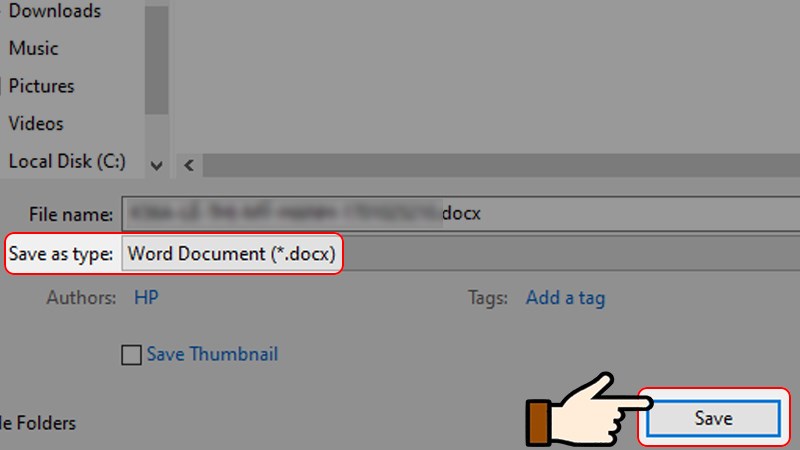
Step 3: Choose where to save the document. In the Save as type pane, select Save as Single File Web Page (.mht) > Select Save.
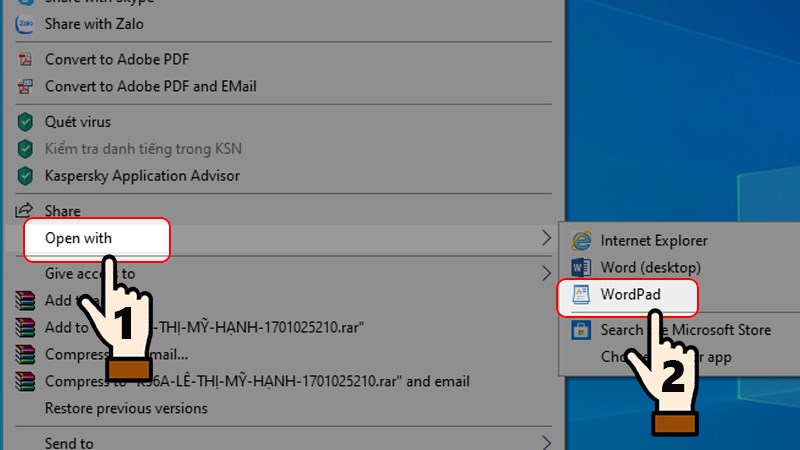
Step 4: At the location where you just saved the document, right-click on the Word file > Select Open with > Select Open with WordPad tool.
Step 5: Then, press Ctrl + F or select Find on the screen.
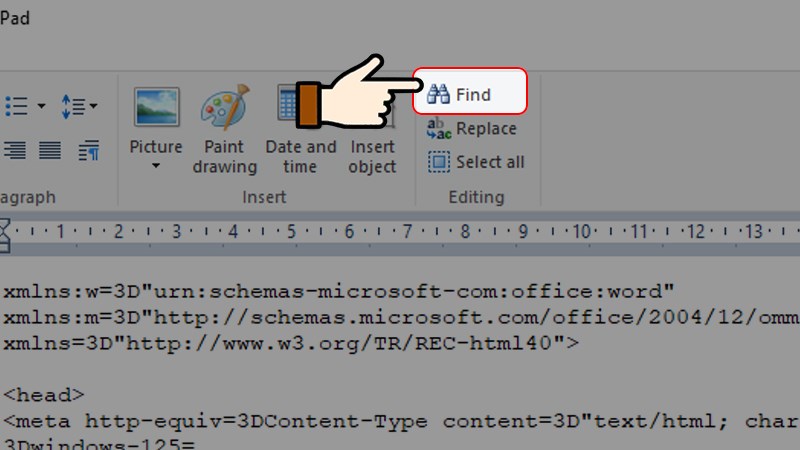
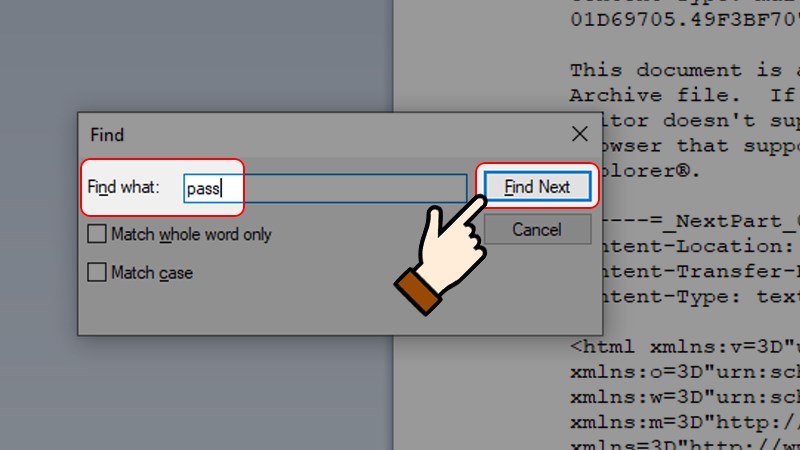
Step 6: Type “pass” into the Find what search box > Click Find Next.
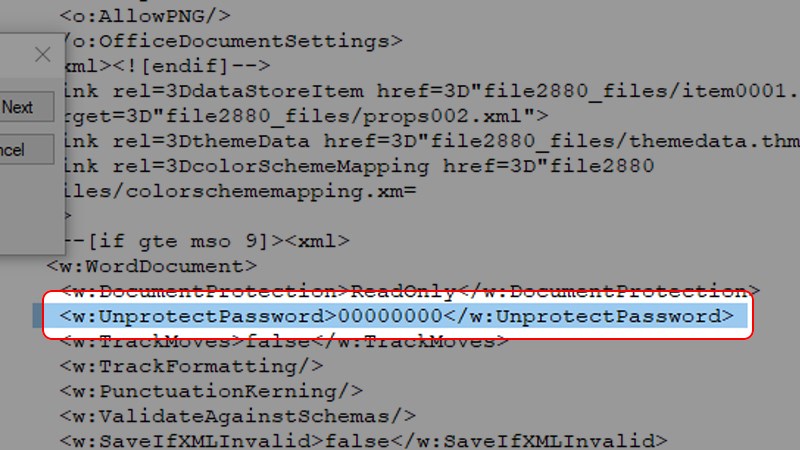
Step 7: Next, delete the character line containing the following word “pass” 00000000.
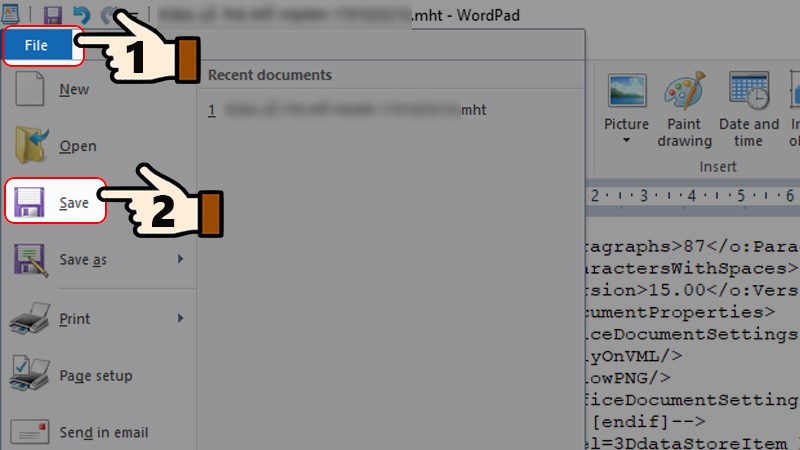
Step 8: Press Ctrl + S or go to File > Select Save to save the last change.
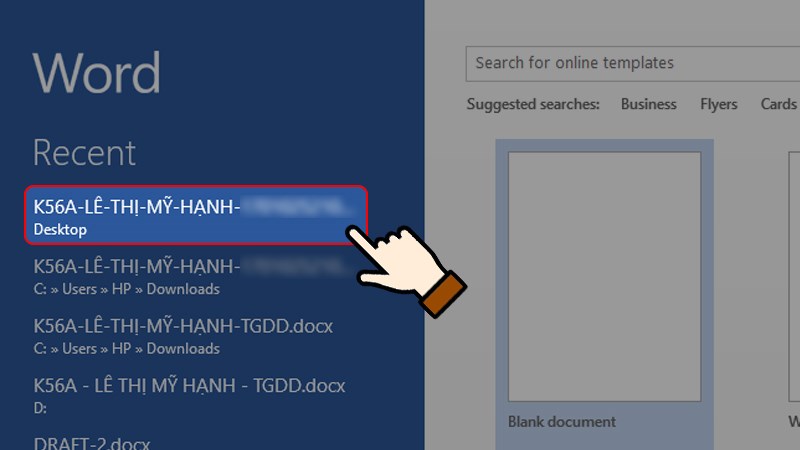
Step 9: Access Word software, reopen that .mht file.
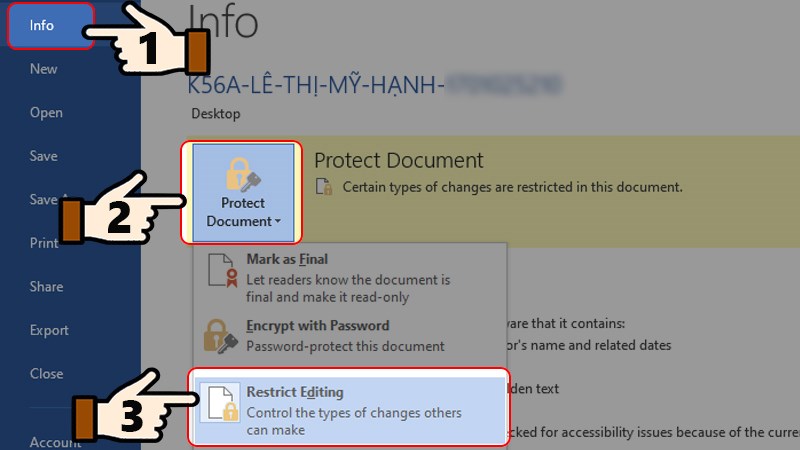
Step 10: Click File > Select Info > Select Protect Document > Finally, select Restrict Editing.
Step 11: In the lower right corner of the screen , click Stop Protection.

Step 12: Finally, select Save As and save the document as .doc or .docx format. Open the saved Word file again, so you can edit the document as usual.
How to open word lock? Above are the simple steps to help you quickly unlock and edit password-protected Word files. I wish you successful editing, and don’t forget to share the article and leave a comment below if you have any questions!