How to check plagiarism on word? If you’re facing issues with Copy-Paste not working in Word and Excel, don’t worry. In today’s article, I will guide you on how to fix the Copy-Paste not working issue in Word, Excel 2010, 2007, 2013, 2016, and more. It’s a straightforward and quick process.
The article is created on a Windows laptop running Word 2016. Additionally, you can perform these steps on various versions of Word and Excel, including 2007, 2010, 2013, 2016, 2019, as well as on MacOS with similar actions.
Causes of copy-paste failure error in Word, Excel
- The cause of the error may be that your computer is being attacked by a virus.
- Application conflicts, due to you opening too many applications at the same time.
- Your version of Windows is old or corrupted.
- Clipboard is not working.
How to check plagiarism on Word, Excel
Check your keyboard and keyboard shortcuts again
- This is a very common case for most people when it is not possible to perform Copy Paste using the keyboard in Word.
- This method can be used on both laptops and grandmother’s
Because it is a very common error, please prioritize checking the keyboard before doing the ways below. To know if your keyboard is faulty or not, take 1 other keyboard that still works normally and replace it on your device.
If you can use the keyboard shortcuts to Copy and Paste on the new keyboard instead, the main fault is that there is a problem with your old keyboard.
If you still can’t use the keyboard shortcuts to Copy and Paste, try the ways below to fix this error!
Scan your computer to remove viruses and malware
Of course, whenever you encounter something wrong with Windows or even software on your computer, the first thing to do is to destroy the virus or malware to return the machine to normal operation.
Note:
You can use Windows Defender to scan your computer for malware. However, Windows Defender is not available on Windows 7 and 8.
For Windows 7 or 8 you can use antivirus software to scan your computer. You can refer to the article: Top 5 best free antivirus software on computers, PCs.
Step 1: Click the Start button on the taskbar > Select the Settings icon.

Step 2: Tap Update and Security.
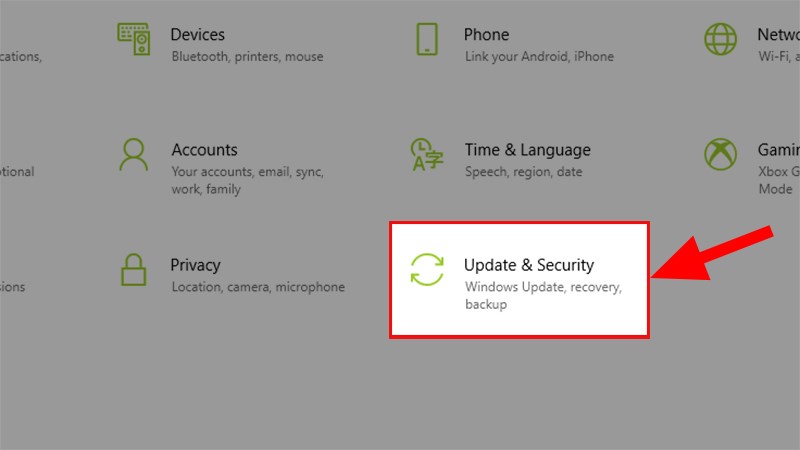
Step 3: Click Windows Security > In the Protection areas section > Select Virus & threat protection.
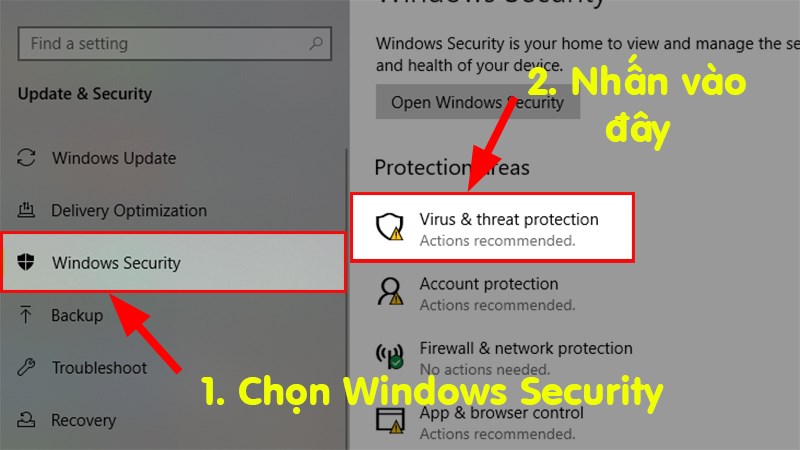
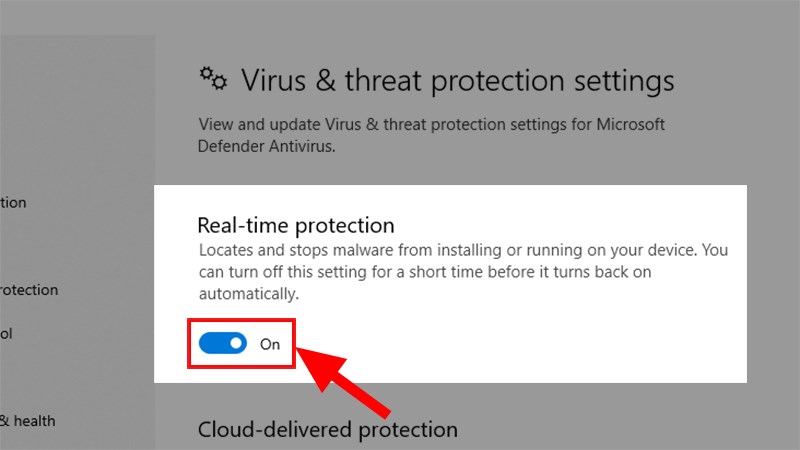
Step 4: The Windows Security dialog box pops up > Go to Virus & threat protection settings > Select Manage settings.
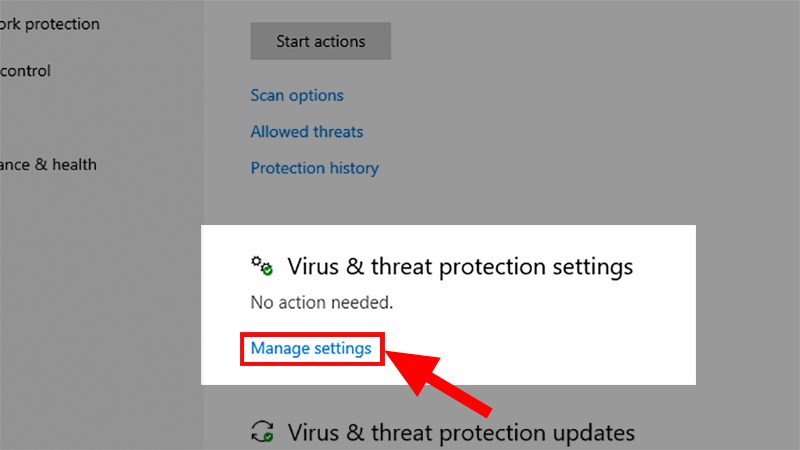
Step 5: Switch the status bar of Real-time protection to On.
Note: Before proceeding with the next steps, make sure that your computer does not contain malicious software such as rootkits, malware, or viruses.
Check Copy Paste shortcuts on Word, Excel applications
Sometimes the error can also occur because you have not set up the Copy and Paste shortcuts or you accidentally replace them with other shortcuts without you noticing.
- Note: The method below can also be applied to Excel files!
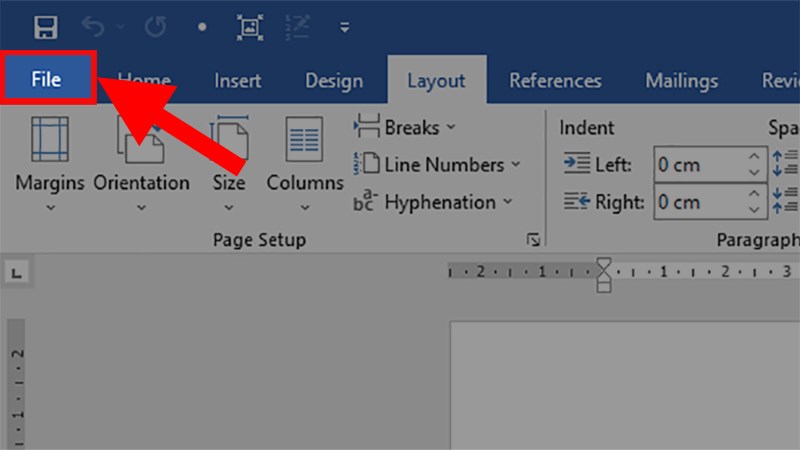
Step 1: Open a Word file > Select the File tab.
Step 2: Select Options.

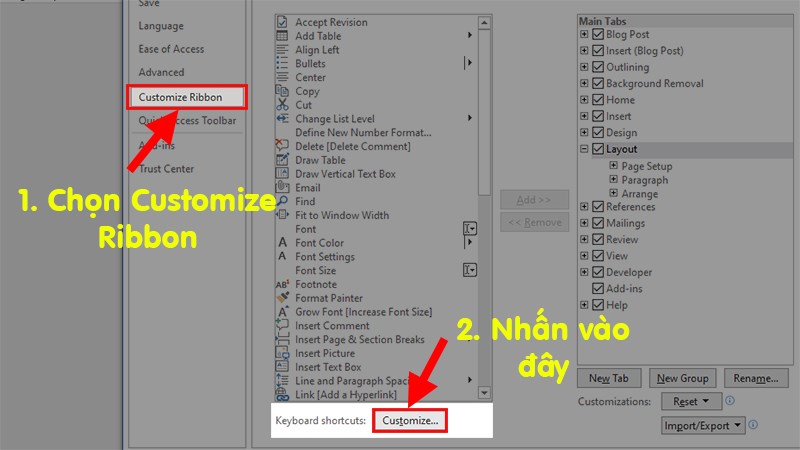
Step 3: The Options dialog box pops up > Click the Customize Ribbon > Under Keyboard shortcuts, select Customize.
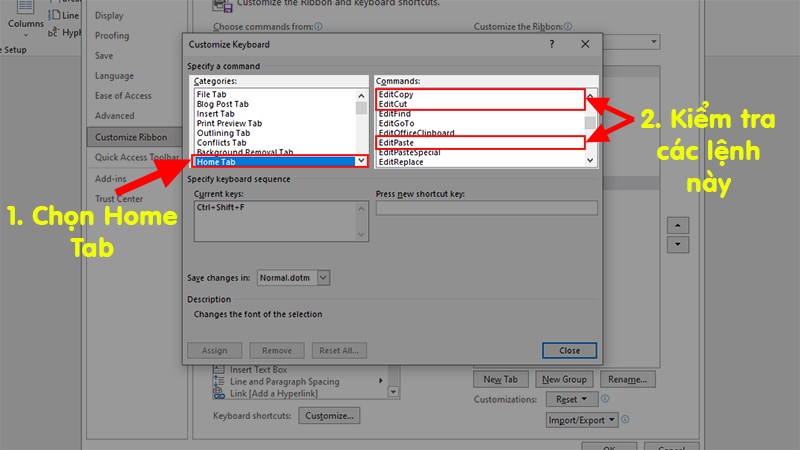
Step 4: The Customize Keyboard dialog box pops up > Under Categories > Select Home Tab > In the Commands section > Select EditCopy/EditCut/EditPaste to check.
Note: For the EditCopy command.
Under Current keys, you’ll see 2 default keyboard shortcuts (Ctrl+C and Ctrl+Insert). If you do not see the above 2 shortcuts, in the Press new shortcut key section, enter the missing shortcut key and press Enter.
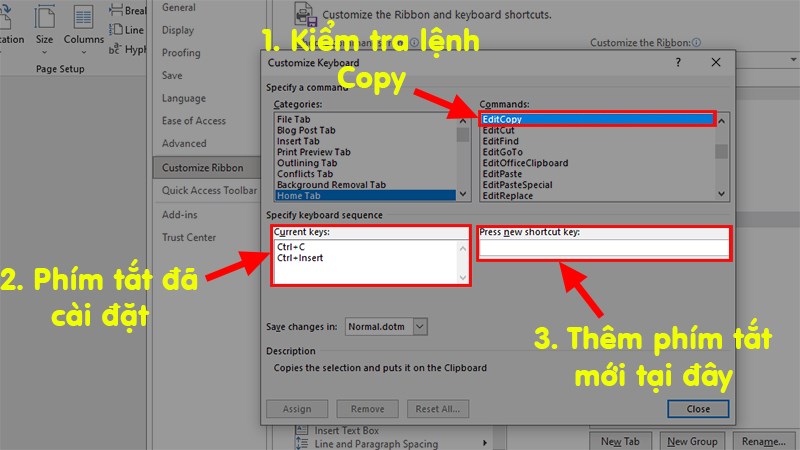
Check the EditCopy command Đối với lệnh EditCut (Cut order).
Under Current keys , you’ll see 2 default keyboard shortcuts (Ctrl+X and Shift+Del). If you do not see the above 2 shortcuts, in the Press new shortcut key section, enter the missing shortcut key and press Enter.
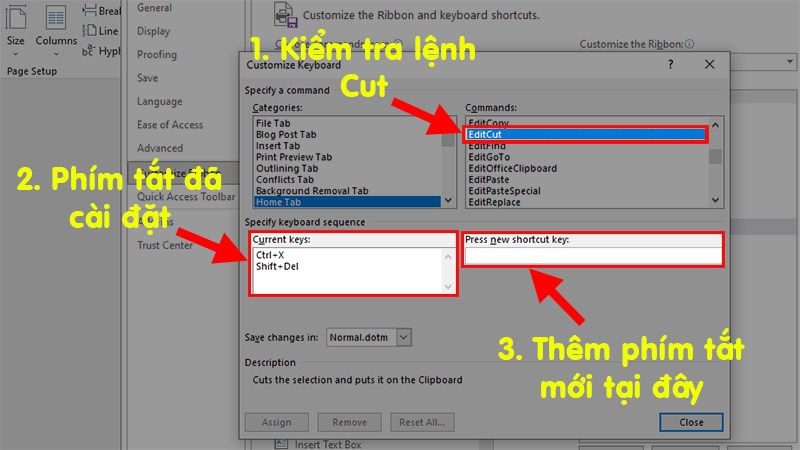
Note: For the EditPaste command (The command to paste data after Copy or Cut).
Under Current keys , you’ll see 2 default keyboard shortcuts (Ctrl+V and Shift+Insert). If you do not see the above 2 shortcuts, in the Press new shortcut key section, enter the missing shortcut key and press Enter.
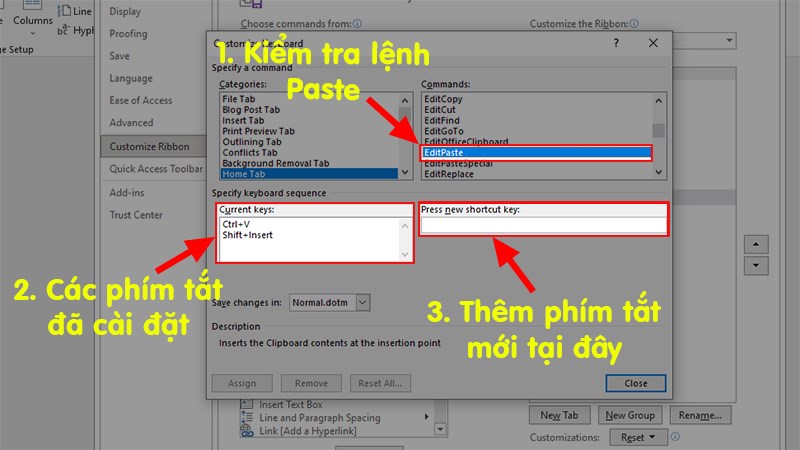
Step 5: Check whether the error still exists or not. If the error still exists, continue to follow the ways below!
Run Word, Excel without Plugins
In some cases, adding plugins can cause serious errors in Word. So to limit the fact that plugins cause errors, you can run Word without any plugins.
Step 1: Close the Word software you are using again.
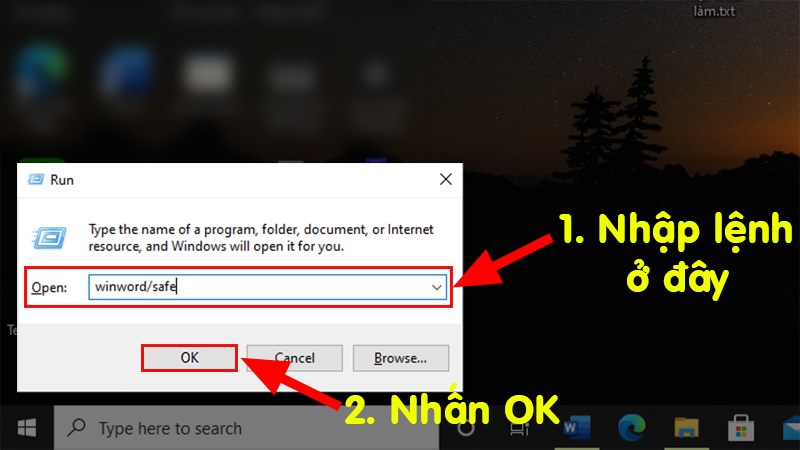
Step 2: Press Windows key + R to open the Run command window > The Run window pops up > In the Open section, enter the command winword /safe > Click OK to open the Word file in Safe mode.
Note: To run programs in Safe Mode (without any plugins), enter the /safe command after each application name. For example, in the case of Excel files, it will be excel /safe.
Step 3: The Word file will be opened automatically (now the Microsoft Word application will be opened in Safe Mode and not load any plugins) > Click File.
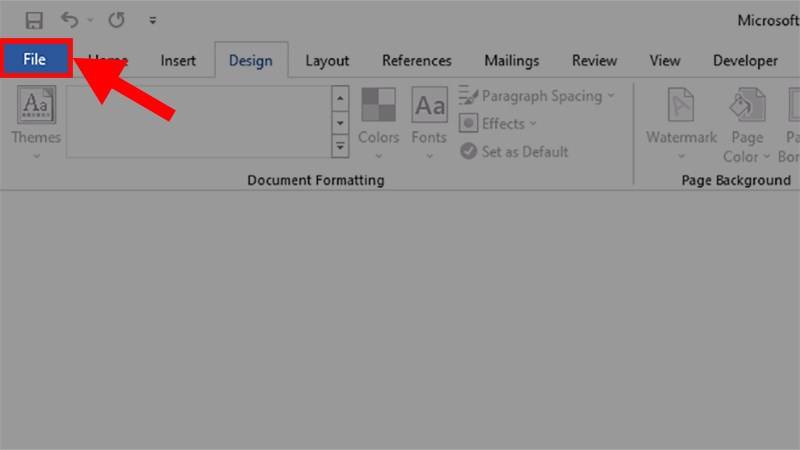
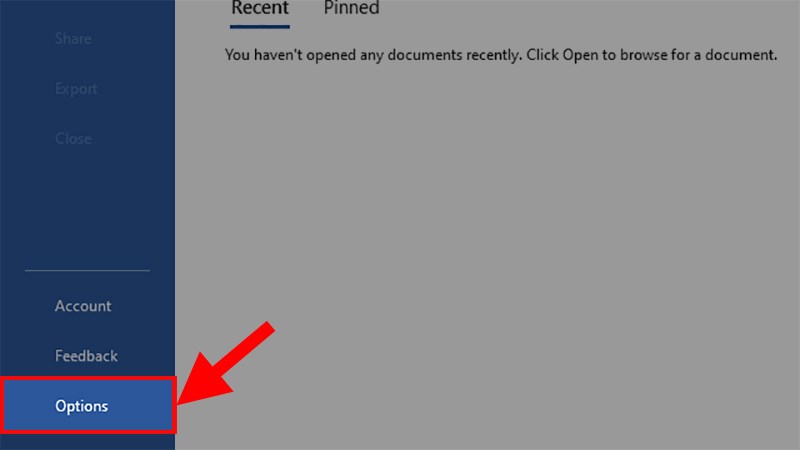
Step 4: Select Options.
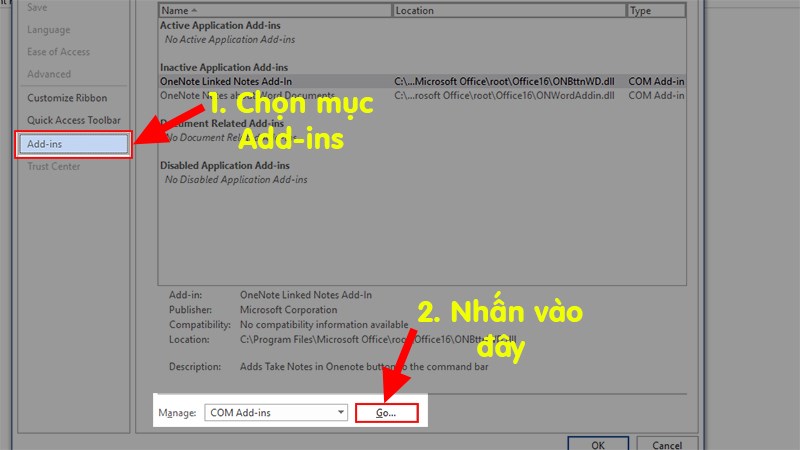
Step 5: The Options window appears > Select Add-Ins> In the Manage section, select Add-ins > Click Go.
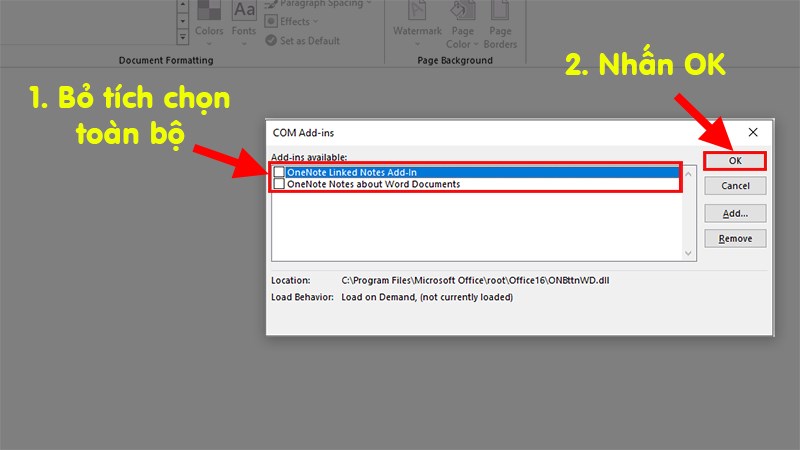
Step 6: The Add-Ins dialog box pops up > Uncheck all plugin disabling options as shown below > Select OK.
Step 7: Close and reopen Word in normal mode. Check if the Copy-Cut-Paste command has worked.
Note: If the above commands work, please visit the Add-ins again and activate each plugin one by one to see and find out which plugin is the cause of the error.
Disable security software
This is done when your machine has security software installed for your computer such as security for file folders, security for the web,…
In some cases, security software installed on your computer can indeed be a factor that prevents you from using the Copy and Paste functions in Word. If you have such software installed, try disabling it and then attempt to use the Copy and Paste commands in Word!
Some other remedies
Note: Please use the following solutions if the above methods cannot fix the Copy and Paste error in Word.
- Uninstall any recent versions of IE
Sometimes updated versions of Intenet Explorer can also be the cause of the error that the Copy and Paste function cannot be used.
- Uninstall unnecessary applications
- If you have Skype Call to Click installed, you should uninstall the application in the Programs and Features section of the Control Panel window.
- In addition, you should completely uninstall the Skype application, and then reinstall the latest version.
- Using the System File Checker (SFC) tool
To fix corrupted Windows files and services, you can try the System File Checker (SFC) tool. To do this:
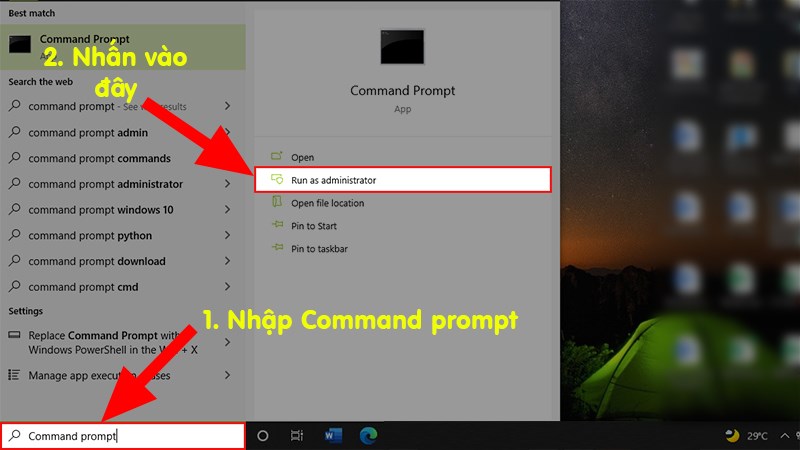
Step 1: Go to the search bar type Command prompt > Select Run as administrator.
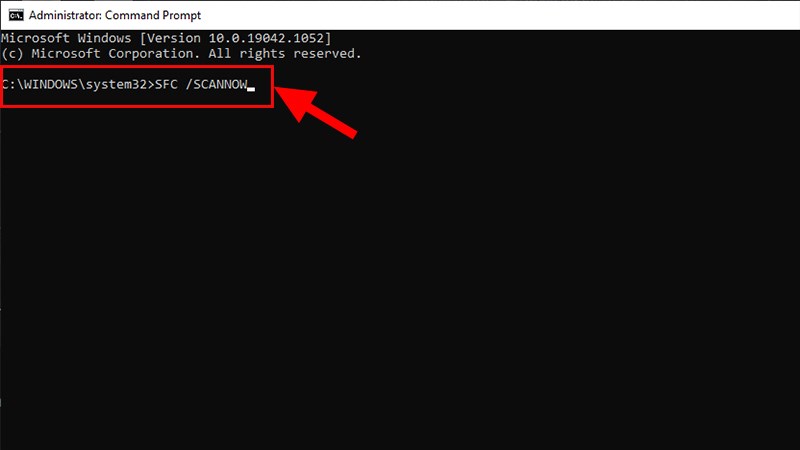
Step 2: On the Command Prompt window > Type the command SFC /SCANNOW > Press Enter.
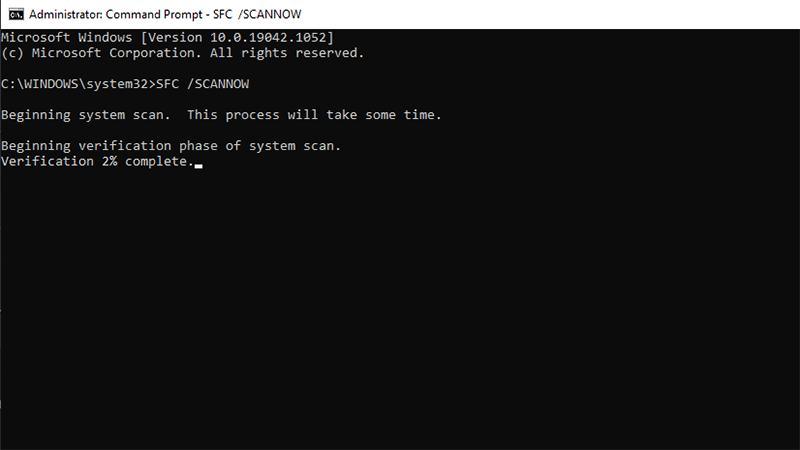
Step 3: Wait for SFC tool to check and fix corrupted system files and services.
Step 4: After finishing the process, restart your computer and check if the Copy/Paste command has worked.
- Use a remote connection to connect to another computer
If you use a remote connection to connect to another computer and the Copy/Paste command doesn’t work after connecting.
Then you must quit and run the “Rdpclip.exe” process again on the remote computer clipboard. To do this, you do the following:
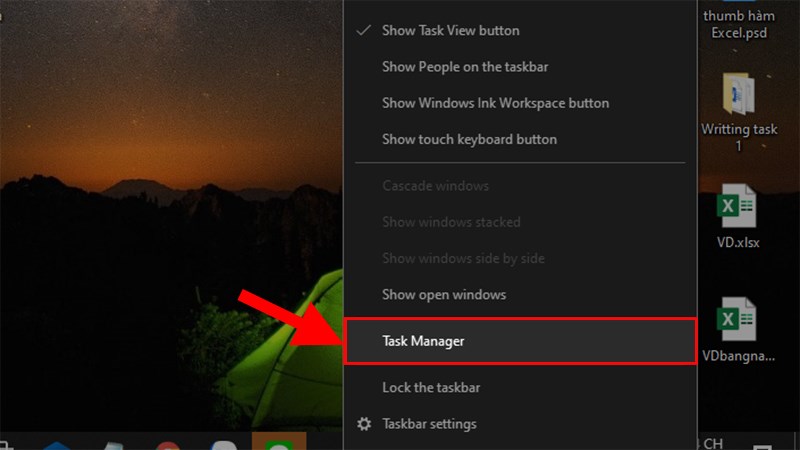
Step 1: Right click on the Taskbar > Select Task Manager.
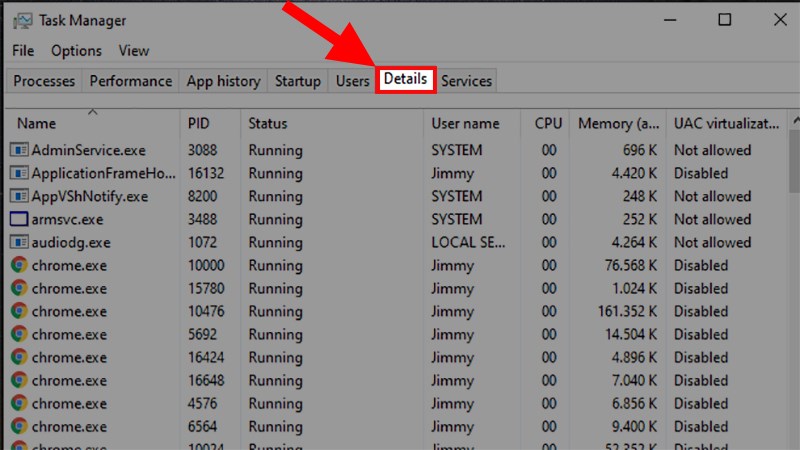
Step 2: On the Task Manager window, click on the Details tab (for Windows 10) or the Processes tab (for Windows 7, 8).
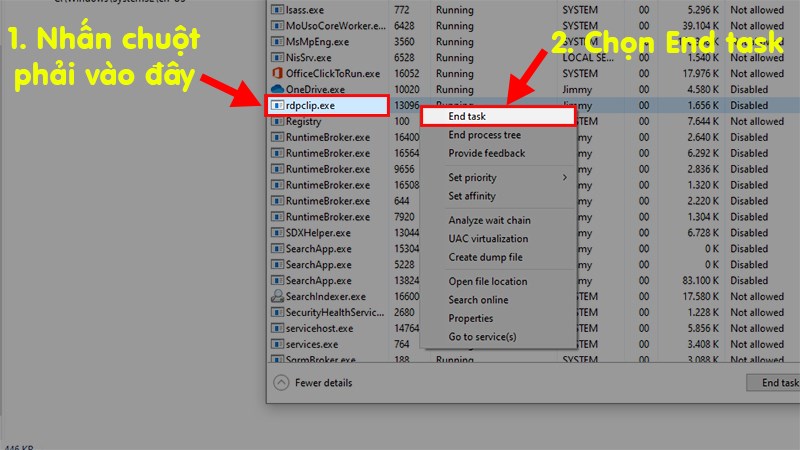
Step 3: Right click on rdpclip.exe > Select End Process.
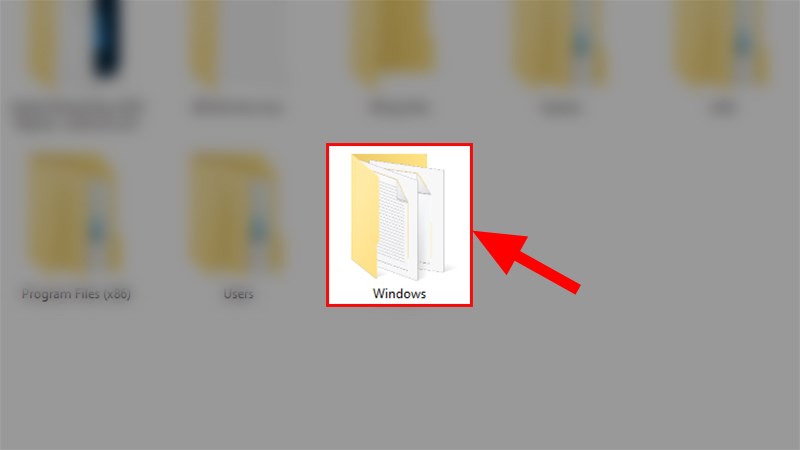
Step 4: You access the C drive > Select the Windows folder.
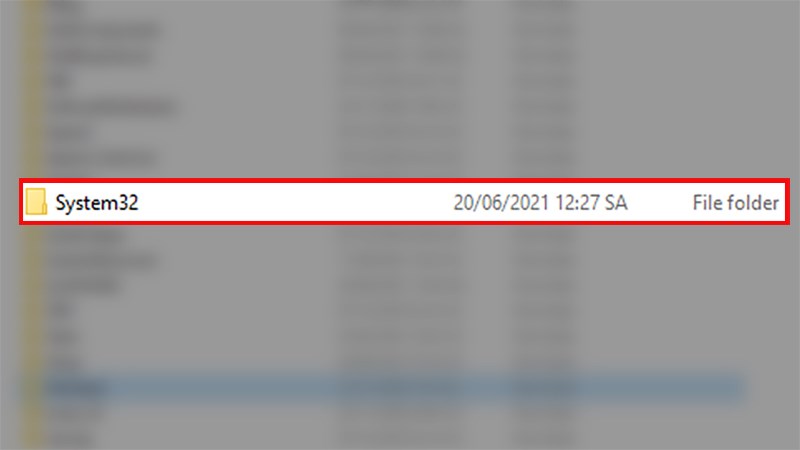
Step 5: Find and select the System32 folder.
Step 6: Go to the search bar > Type “rdpclip.exe”.
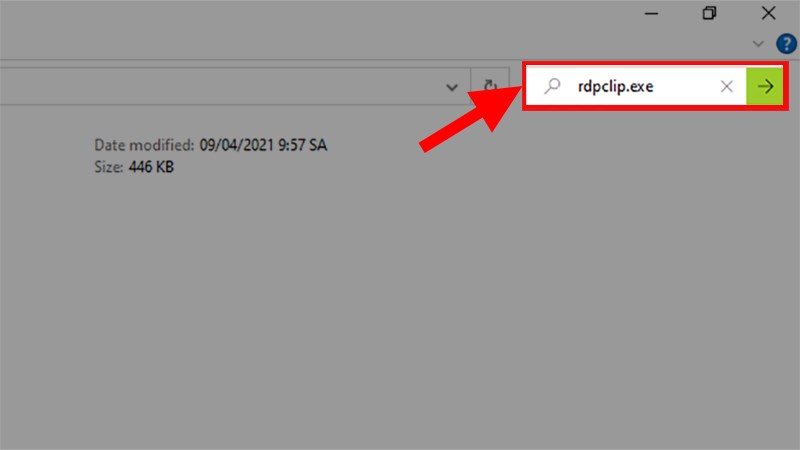
Step 7: In the result that appears> You restart rdpclip.exe.
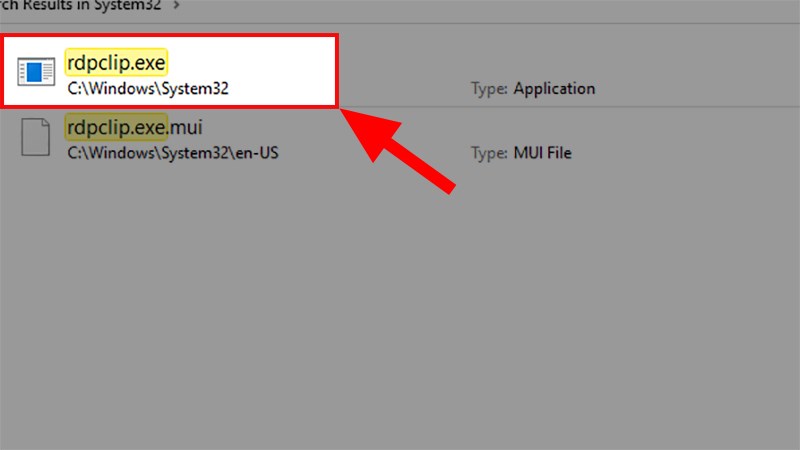
Finally, check to see if you can use the Copy Paste command.
- Repair your Office installation
Sometimes the error can also be caused by a faulty version of Office, to fix this, you can use Office’s quick fix function to fix the error.
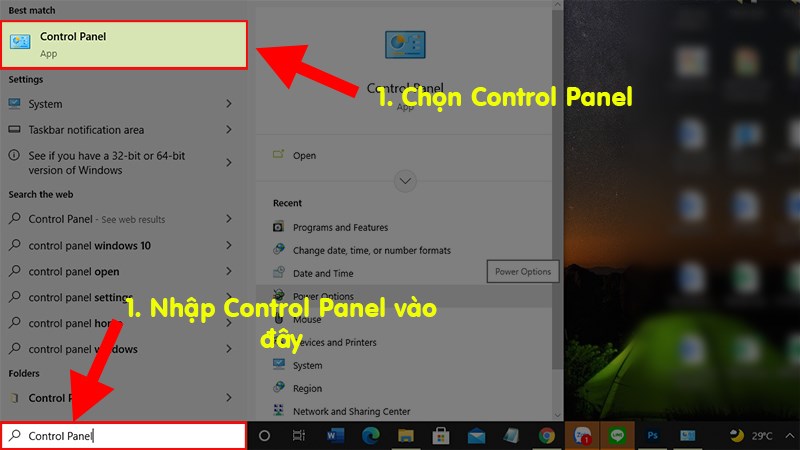
Step 1: Go to the search bar > Type Control Panel to open the Control Panel dialog box.
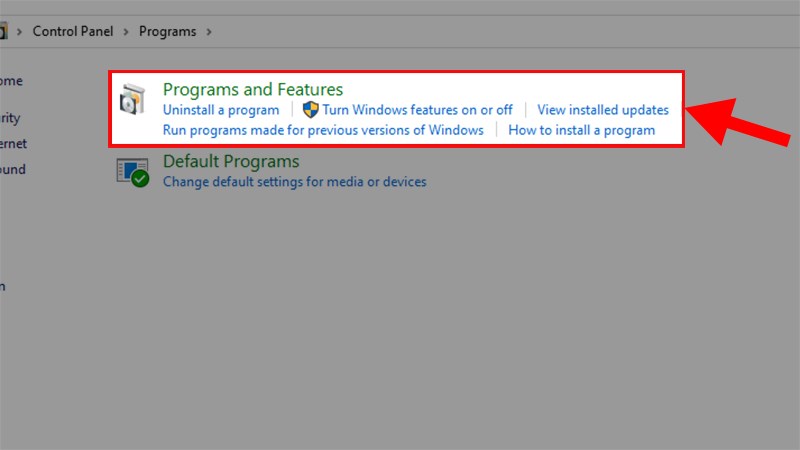
Step 2: In the dialog box that pops up> Select Programs.
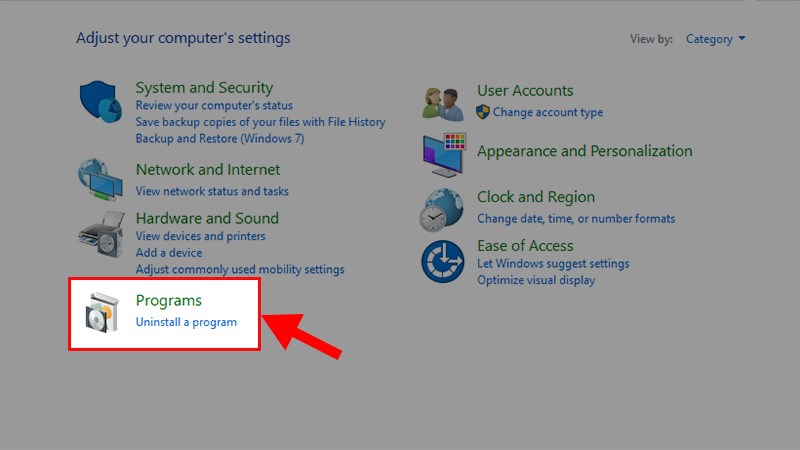
Step 3: Select Programs and Features.
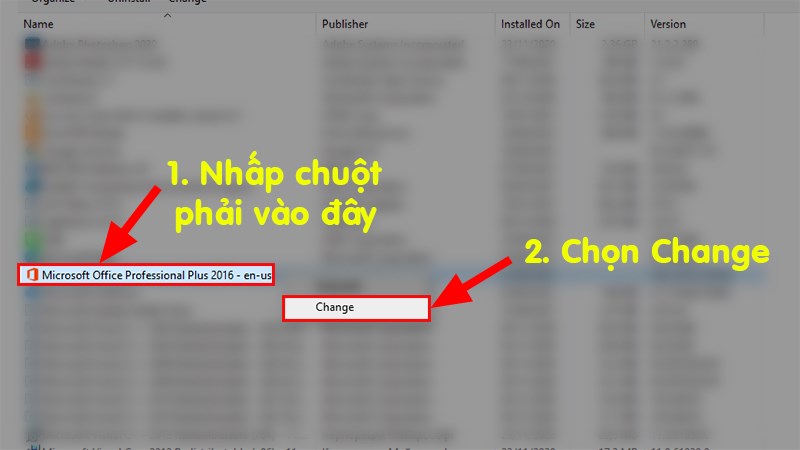
Step 4: Find the version of Office you are using > Right-click > Select Change.
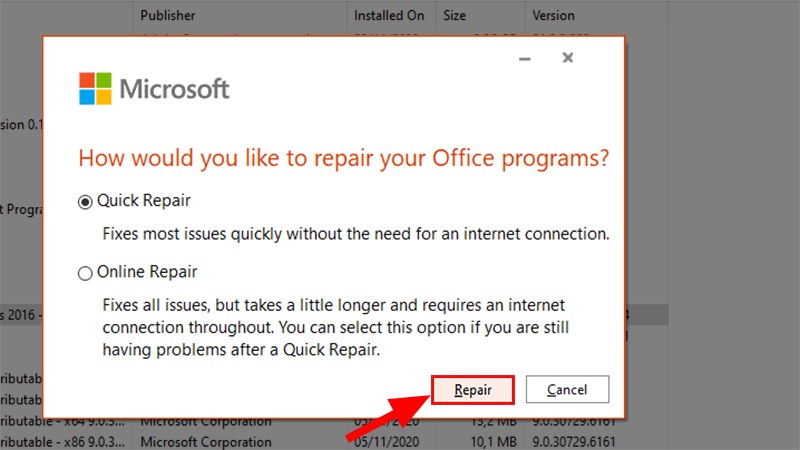
Step 5: In the dialog box that appears, you choose 1 of 2 ways to fix the error > Click Repair to fix Office errors.
Where:
Quick Repair: Runs faster but only detects and replaces corrupted files.
Online Repair: Takes longer, but uninstalls and repairs complete.
Step 6: Then relaunch Word, Excel and try the Copy Paste commands again.
How to check plagiarism on word? And those are the methods that can help you effectively and simply resolve the issue of not being able to Copy and Paste in Word. I hope this article proves to be helpful for you. If you have any questions about the article, please leave a comment below!