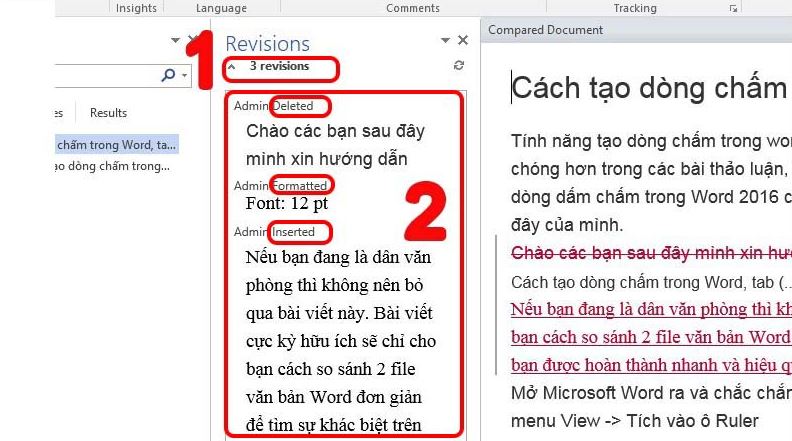
How to duplicate a word doc? If you’re facing difficulties or feeling confused when trying to copy a page of a Word document, don’t worry. Below, I will guide you through a simple process to accomplish this. It only takes a few easy steps, and I’ve also provided an instructional video to help you understand better. Let’s get started!
I. How to duplicate a word doc? Copying 1 Page in Word
How to duplicate a word doc? The following method helps you copy the content of a single page in a Word document using simple steps with the keyboard and mouse.
1. Copying with Keyboard Shortcuts
- Advantages: Quick execution using keyboard shortcuts.
- Disadvantages: Memorizing keyboard shortcuts can be challenging.
Step 1: Move your mouse cursor to any position on the Word page, Press the Ctrl + A keyboard shortcut to select the entire Word page.

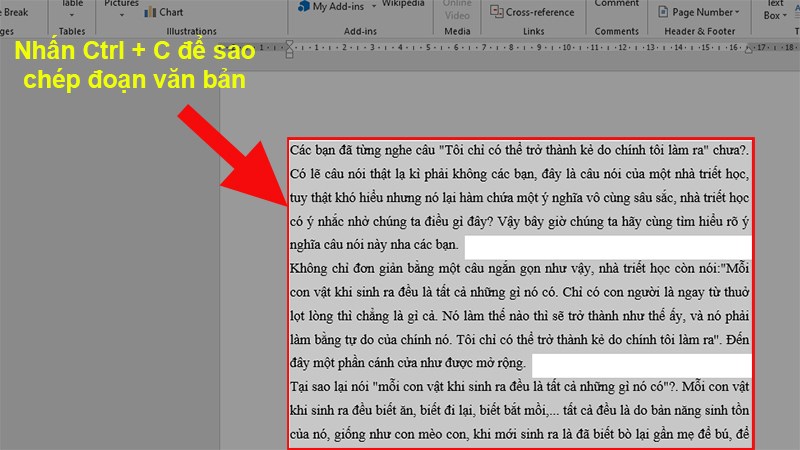
Step 2: Use the Ctrl + C keyboard shortcut to copy the selected content.

Step 3: Navigate to a new location and press Ctrl + V to paste the copied content.

2. Copying with the Mouse
Advantages: Easy execution with mouse actions.
Step 1: Move your mouse cursor to the beginning of the content you want to copy.
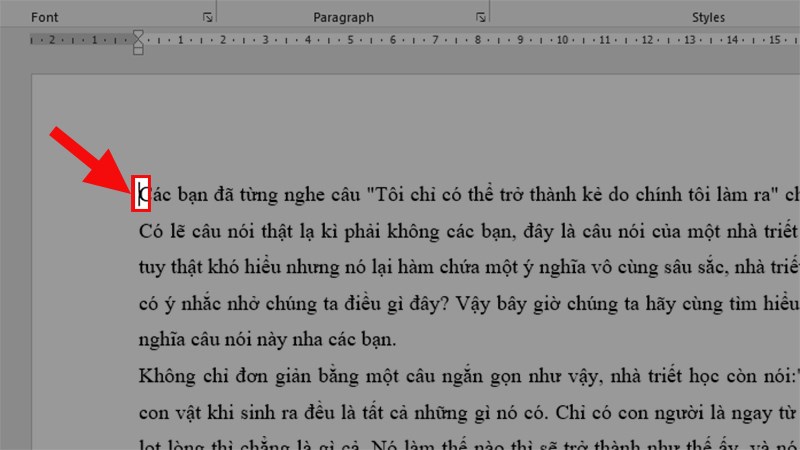
Step 2: Click and hold the left mouse button, then drag to the end of the Word page.
Step 3: Right-click and choose “Copy” to copy the selected Word content.

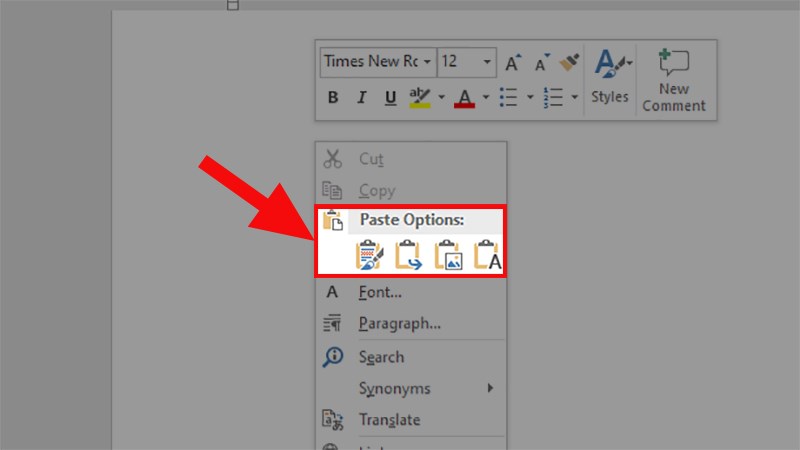
Step 4: Move to the location where you want to paste the content, right-click again, and choose from the following options (from left to right):
- Keep Source Formatting: Maintains the formatting of the previous text.
- Merge Formatting: Combines the formatting of the copied text and the current text (Word will automatically determine the appropriate merge).
- Picture: Pastes the content as an image, like a picture.
- Keep Text Only: Pastes only the plain text without any formatting.
II. How to duplicate a word doc? Copying Multi-Page Documents in Word
How to duplicate a word doc? It only takes a few easy steps, and I’ve also provided an instructional video to help you understand better.
1. Copying 1 Page from a Multi-Page Word Document
To copy a page from a multi-page Word document, you need to locate the target page first. Follow these steps to identify the page you want to copy:
Step 1: Open the Word document from which you want to copy text > Click on the “Page” icon in the lower-left corner.

Step 2: The Navigation pane will appear on the left > Select the “Pages” section > Choose the page you want to copy.
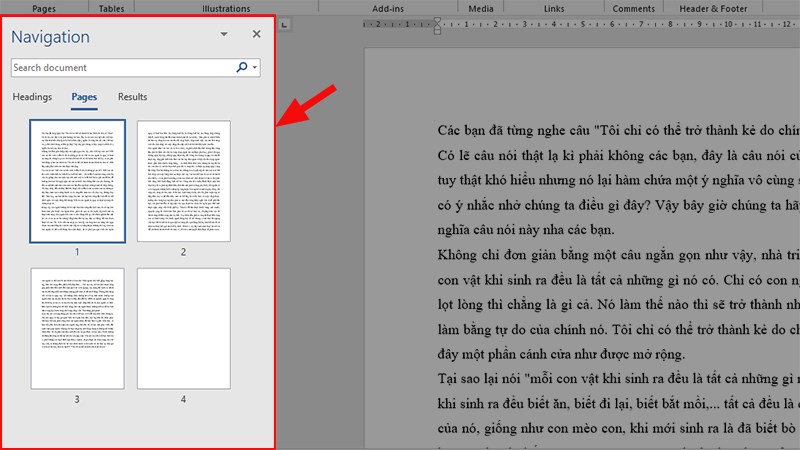
Step 3: When you select a page in the Navigation pane, your current position will jump to the chosen page.

Step 4: Move your mouse cursor to the displayed page on the right > Click and drag to select the entire page.
Step 5: Press the Ctrl + C keyboard shortcut to copy the selected content.

Step 6: Move to the location where you want to paste the content and press Ctrl + V to paste the copied content.

2. Copying Multiple Word Pages
To copy multiple pages in Word, you need to perform a combination of keyboard and mouse actions. Here’s a detailed guide:
Step 1: Go to the first page that contains the data you want to copy and select the data.
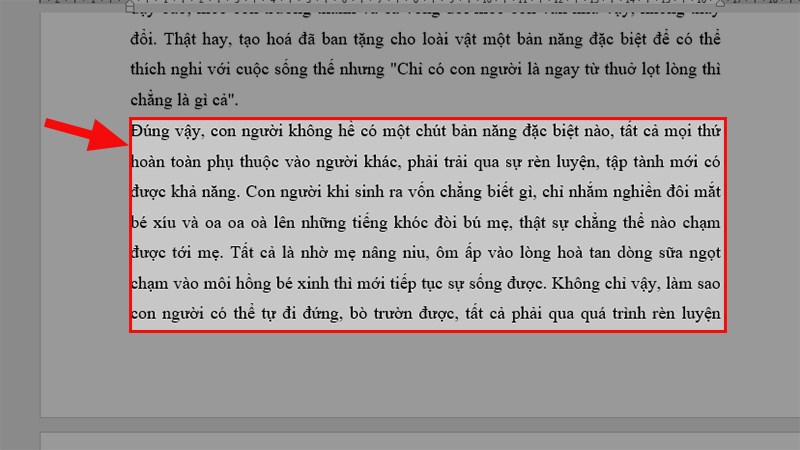
Step 2: Scroll the mouse to the next position with data to be copied. Hold Ctrl and right-click to select the next data to be copied.
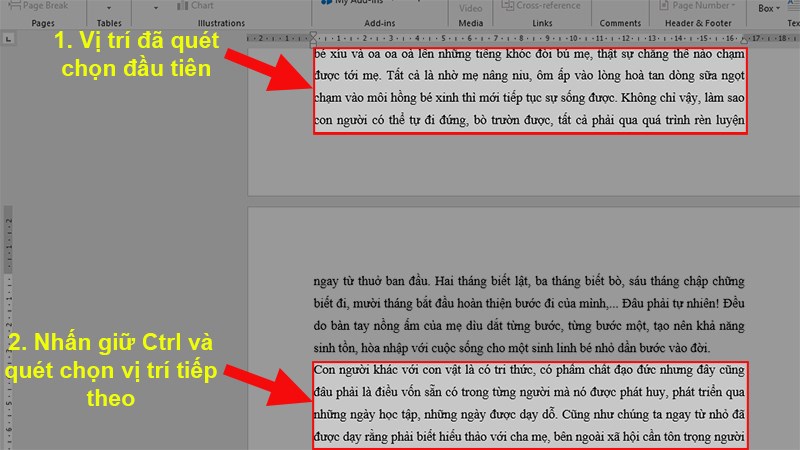
Note:
- Avoid clicking anywhere else during the selection process without holding the Ctrl key.
- If you accidentally select unwanted data, you cannot deselect it, and you will need to start over from Step 1.
Step 3: Continue selecting until you’ve chosen all the data you want to copy. Press Ctrl + C to copy the selected content.

Step 4: Go to the location where you want to paste the copied text and press Ctrl + V to paste the content.

By following these steps, you can efficiently copy multiple pages in Word.
III. How to duplicate a word doc? Inserting a Copied Word Page into Another Word Document
How to duplicate a word doc? In this section, we’ll learn how to professionally and effectively insert a copied Word page into another Word document.
1. Inserting a Copied Page with Keyboard Shortcuts
Note:
- This method pastes content identical to what you copied.
- There are limited formatting options.
To insert content with keyboard shortcuts, simply press Ctrl + V after copying the content.
2. Inserting a Copied Page with the Mouse
Note:
- This method provides more formatting options for the copied content.
- It allows for easy customization of formatting.
Step 1: Position the cursor where you want to insert the copied content. Right-click and choose “Paste”
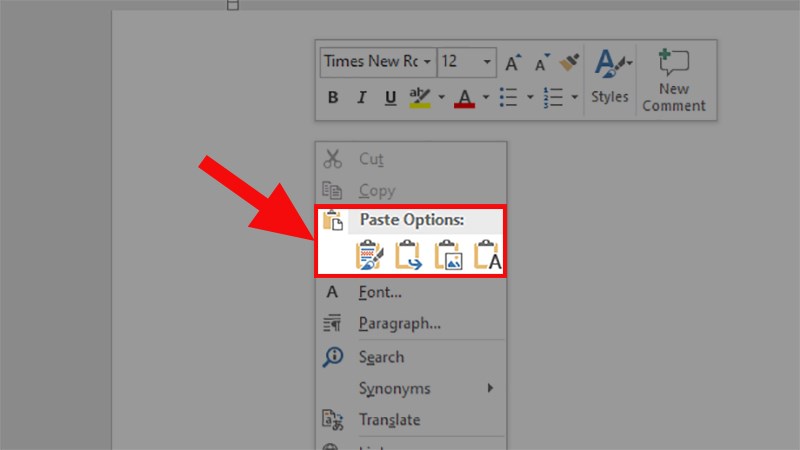
Step 2: Options for pasting with various formatting choices will appear under “Paste Options.”
Options:
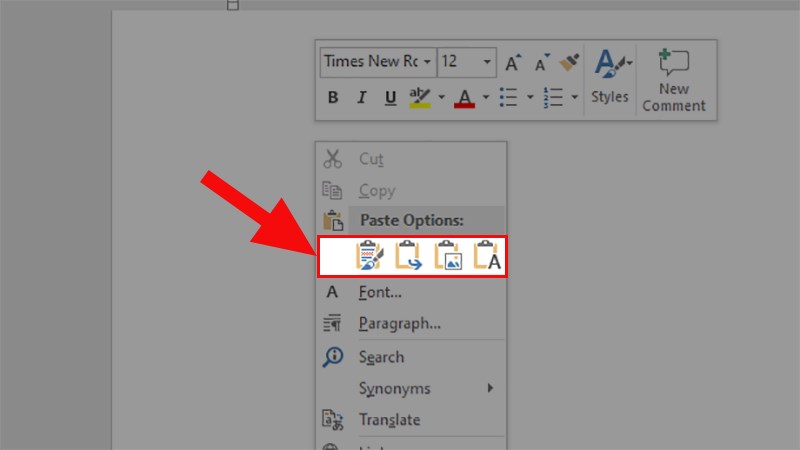
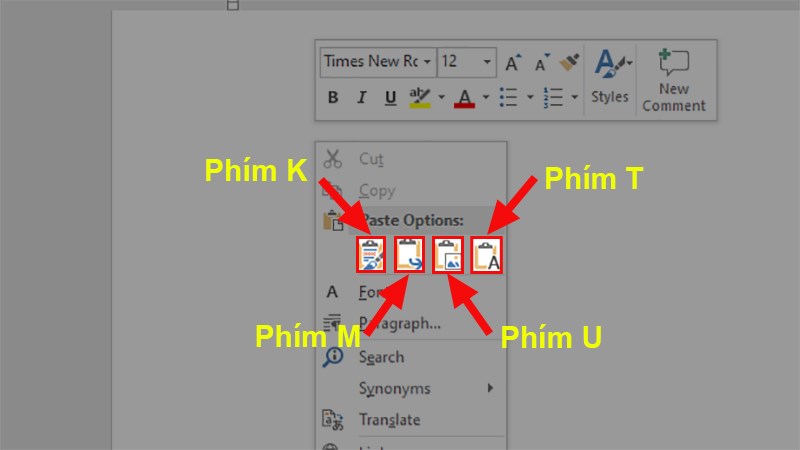
- Keep Source Formatting (Shortcut K): Retains the formatting of the previous text.
- Merge Formatting (Shortcut M): Combines the formatting of the copied text with the current text (Word automatically determines the appropriate merge).
- Picture (Shortcut U): Inserts the text as an image.
- Keep Text Only (Shortcut T): Pastes only plain text with no formatting.
3. Inserting a Copied Page with Mouse and Keyboard Shortcuts
If you want to save time with keyboard shortcuts but also want more formatting options, you can try this approach:
Step 1: Select the data you want to copy by highlighting it. Press Ctrl + C to copy the data.
Step 2: Move to the location where you want to insert the copied content. Right-click again and choose one of the following keyboard shortcut options:
- K (Keep Source Formatting): Maintains the formatting of the previous text.
- M (Merge Formatting): Combines the formatting of the copied text and the current text (Word automatically determines the appropriate merge).
- U (Picture): Inserts the text as an image.
- T (Keep Text Only): Pastes only plain text with no formatting.
IV. How to duplicate a word doc? Inserting a Copied Word Page into a New Word Document with Existing Data
How to duplicate a word doc? It only takes a few easy steps, and I’ve also provided an instructional video to help you understand better.
1. Quick Guide
To insert a copied Word page into a new Word document that already contains data, you can follow these steps:
- Copy the content you want to insert from the original Word document.
- Open the new Word file.
- In the “Insert” tab, select “Blank Page.”
- Place your cursor where you want to insert the text.
- Press Ctrl + V to paste the copied content.
2. Detailed Guide
Step 1: Copy the content you want to insert from the original Word document > Open the new Word file.
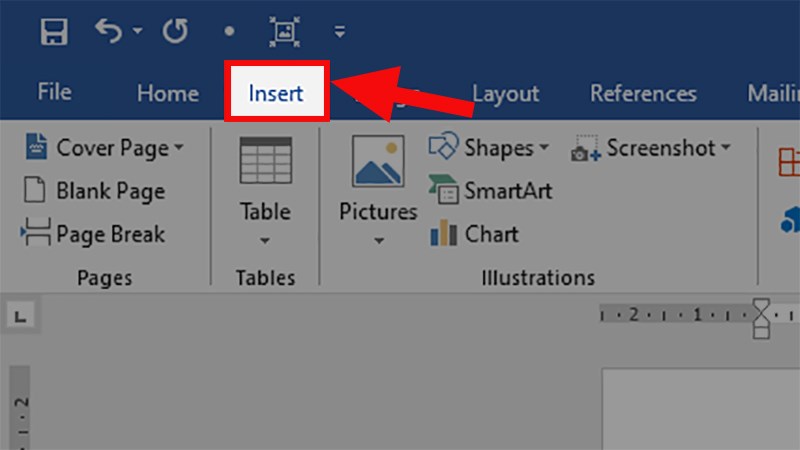
Step 2: In the “Insert” tab, select “Blank Page.”

Step 3: Place your cursor where you want to insert the text > Press Ctrl + V to paste the copied content.

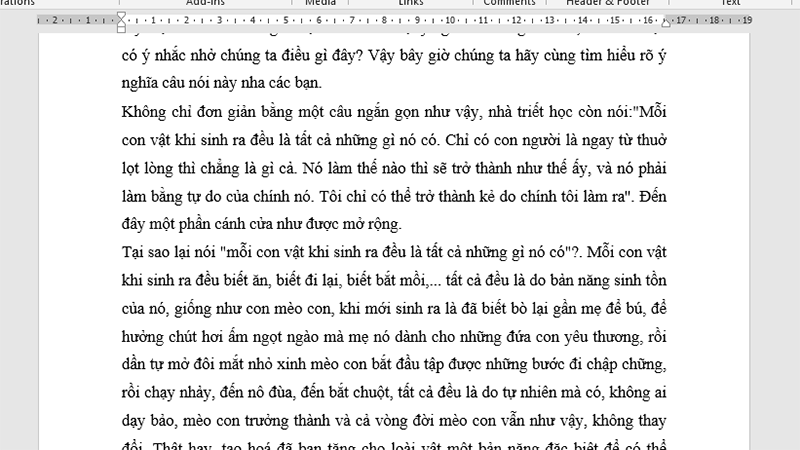
Step 4: Check the result after insertion.
How to duplicate a word doc? These are four methods to help you quickly and easily copy and insert a Word page into a new document. If you have any questions, please don’t hesitate to leave a comment. I hope this article proves helpful to you, and I wish you success!