How to create a brochure in word???

How to create a brochure in word? Microsoft Word is a ubiquitous word processing program that is available on a wide range of devices. One of Word’s key strengths is its extensive library of templates, which can be used to create professional-looking documents without the need for specialized design skills.

Brochures are a popular marketing tool that can be used to promote a business or organization. While it is possible to create a brochure from scratch, using a template can save time and effort.

In this tutorial, we will show you how to create a brochure in Microsoft Word using a template.

Step 1: Find a template

First, open Word and select File > New. In the search bar at the top of the window, type Brochure and press Enter.
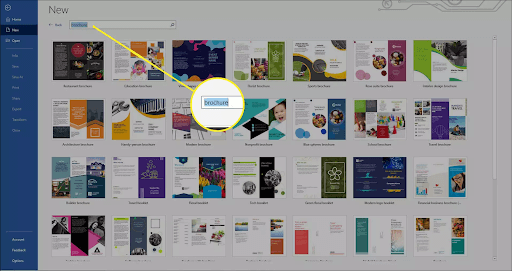
Find a template
Find a template

Step 2: Select a template

After you find a design you like, click it, and then click Create. This will open the template as a new document for you to edit.
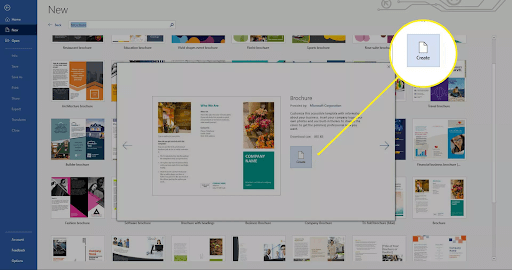
Select a template
Select a template

Step 3: Replace the placeholder text

Start with the placeholder text first. Click any text in the document and replace it with your desired text. You can also change the font, font size, and color as desired.
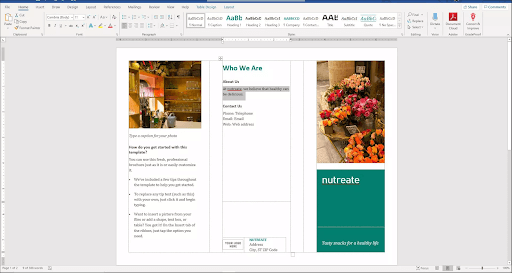
Replace the placeholder text

Step 4: Replace the images

If you want to replace one or all of the existing images, right-click them and select Change Picture. Browse to the location of the image you want to add.
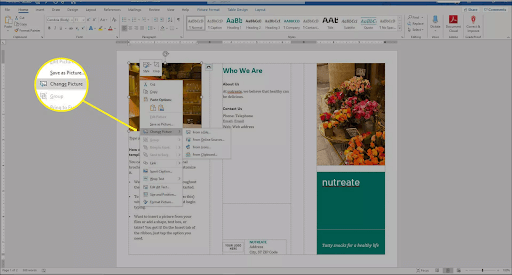
Replace the images
Replace the images

Step 5: Change the colors

Finally, change the brochure’s color scheme. Click the Design tab and select Colors. Here, you can select one of the available colors or create a new one.
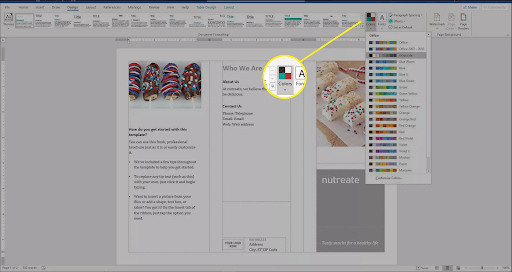
Change the colors
Change the colors

How to create a brochure in word? Using a template is the quickest and easiest way to create a brochure in Word. You can also use Word templates to create invitations, cards, and more using the same steps.

Related Posts

Cách cài đặt font chữ mặc định cho Word đơn giản, dễ thực hiện nhất 1

Cách cài đặt font chữ mặc định cho Word đơn giản, dễ thực hiện nhất

Trong quá trình soạn thảo văn bản, việc sử dụng một font chữ nhất quán và phù hợp không chỉ tạo nên tính chuyên nghiệp cho tài…

Giải Pháp Hiệu Quả Khi File Word Không Cho Chỉnh Sửa 5

Giải Pháp Hiệu Quả Khi File Word Không Cho Chỉnh Sửa

Trong quá trình sử dụng Microsoft Word, không ít người dùng gặp phải tình trạng file Word không cho chỉnh sửa, gây ra nhiều phiền toái và…

Khắc Phục Lỗi Ko In Được File Word: Nguyên Nhân và Giải Pháp Hiệu Quả 9

Khắc Phục Lỗi Ko In Được File Word: Nguyên Nhân và Giải Pháp Hiệu Quả

Việc in tài liệu là một phần không thể thiếu đối với dân văn phòng, sinh viên, và học sinh trong quá trình làm việc và học…

Hướng Dẫn Soạn Thảo Nội Quy Phòng Cháy Chữa Cháy File Word Đầy Đủ 13

Hướng Dẫn Soạn Thảo Nội Quy Phòng Cháy Chữa Cháy File Word Đầy Đủ

Phòng cháy chữa cháy (PCCC) là một trong những hoạt động quan trọng, có vai trò thiết yếu trong việc bảo vệ an toàn cho con người…

So Sánh 2 Bản Word Sự Khác Biệt Giữa Word 2016 và Word 2019 17

So Sánh 2 Bản Word Sự Khác Biệt Giữa Word 2016 và Word 2019

Phần mềm xử lý văn bản đóng vai trò quan trọng không chỉ trong công việc mà còn trong học tập. Trong số các phần mềm này,…

Những Cách Tách File Word Thành Nhiều File 22

Những Cách Tách File Word Thành Nhiều File

Microsoft Word là một phần mềm xử lý văn bản được phát triển bởi Microsoft, lần đầu tiên ra mắt vào năm 1983 dưới tên Multi-Tool Word…

Leave a Reply

Your email address will not be published. Required fields are marked *